
English
English
Appearance
TrueSize can turn any place on the map into a map poster for printing, wallpaper or social media. Choose a city, country, island or your own imported shape, style the frame, title and colors, and export a PNG, PDF or SVG in one of 12 size presets.
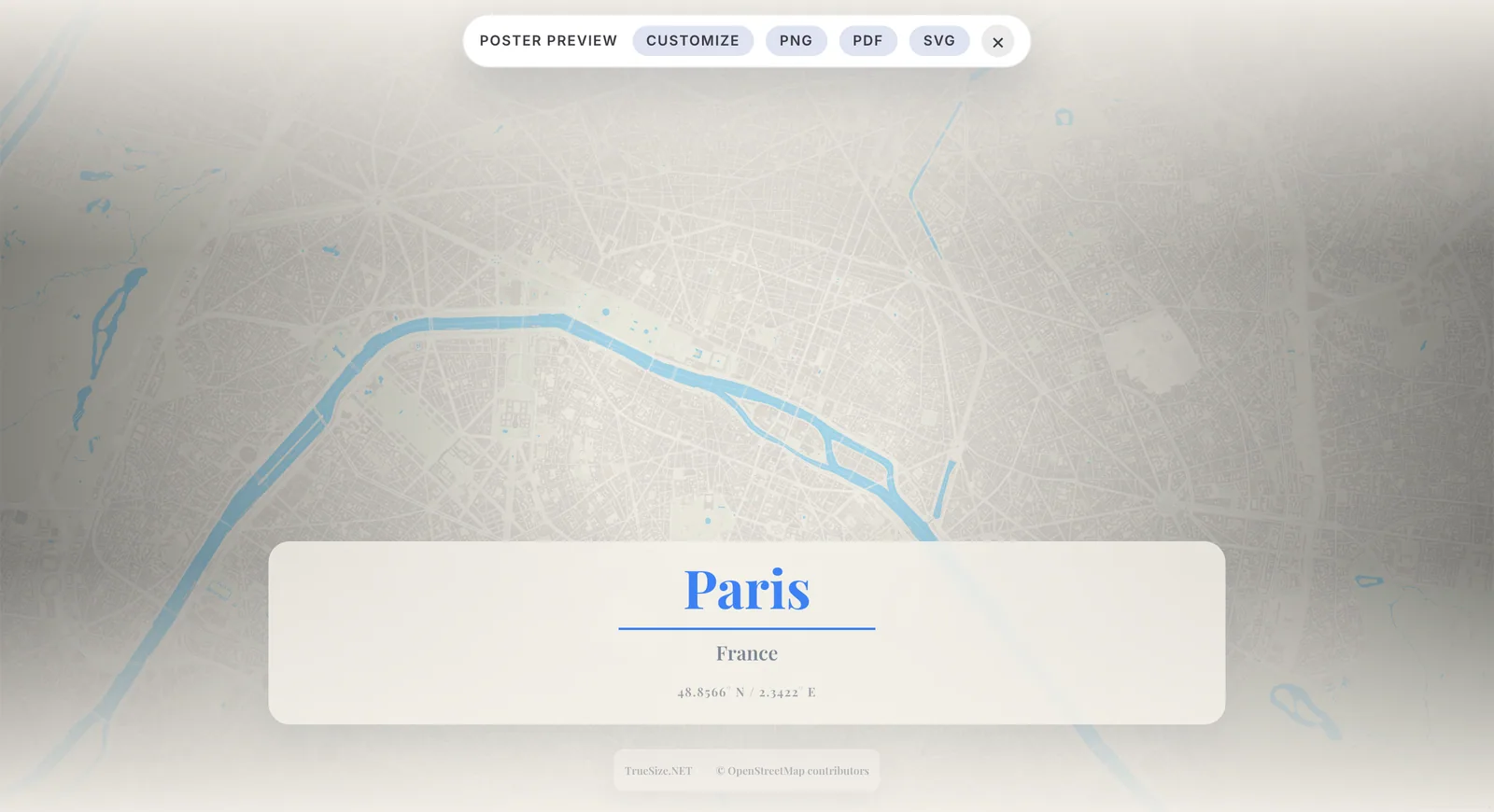
A map poster preview in TrueSize.
Load the place you want. Search for a city, country, state, island or coastline on the Home tab, or import your own file from the Advanced tab.
Move and zoom the map until the composition looks right.
Open the Tools tab and click Poster. The map switches to a framed Poster Preview. The map stays interactive, so you can still pan, zoom, tilt and rotate.
Poster Preview does not work with MapToolkit map types, so use the OpenStreetMap map type for posters. Poster is not available while a planet is shown.
Click Customize in the poster bar at the top of the map to open the poster settings, and adjust the look (see below).
Choose an Output size in the settings, then click PNG, PDF or SVG in the poster bar to download the poster.
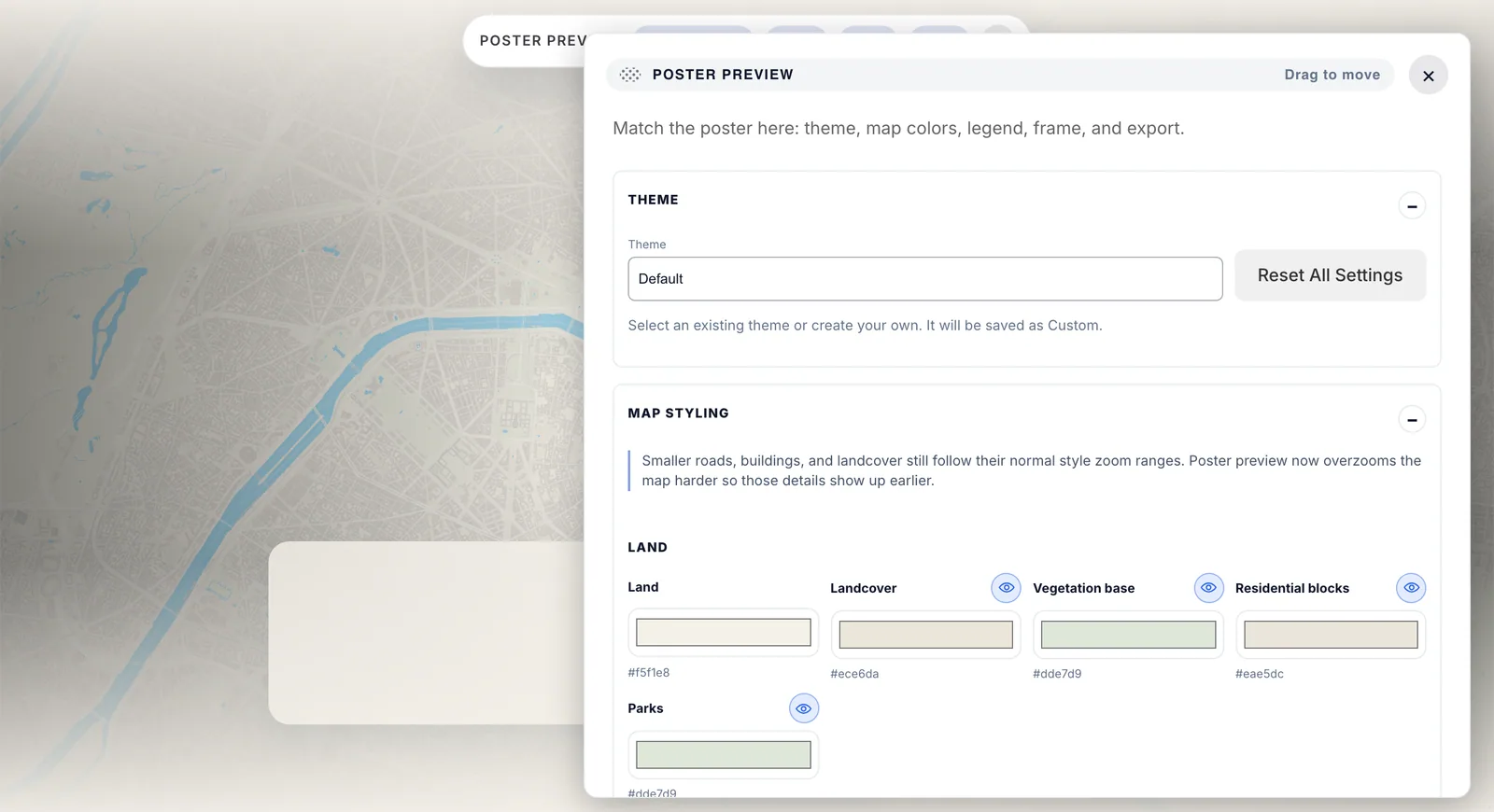
The poster bar at the top and the settings panel opened with Customize.
Reset All Settings returns everything to the defaults, and Exit poster mode takes you back to the normal map.
Pick one of 12 presets in Output size. Choose it early so you compose for the right proportions.
| Preset | Use |
|---|---|
| Current screen | Whatever your window shows |
| Print: A4 Portrait (21 x 29.7 cm) | Home printing |
| Print: A3 Portrait (29.7 x 42 cm) | Larger wall prints |
| Social: Instagram Square (1080 x 1080) | Square posts |
| Social: Instagram Portrait (1080 x 1350) | Portrait posts |
| Social: Story 9:16 (1080 x 1920) | Stories |
| Social: Pinterest Pin (1000 x 1500) | |
| Wallpaper: Desktop 4K (3840 x 2160) | Desktop backgrounds |
| Wallpaper: Ultrawide (3440 x 1440) | Ultrawide monitors |
| Wallpaper: iPhone 15 Pro (1179 x 2556) | Phone wallpaper |
| Wallpaper: iPad Pro 12.9" (2048 x 2732) | Tablet wallpaper |
| Web: Hero Banner (1440 x 600) | Website headers |
Posters made in TrueSize. Click a poster for the full-size image.
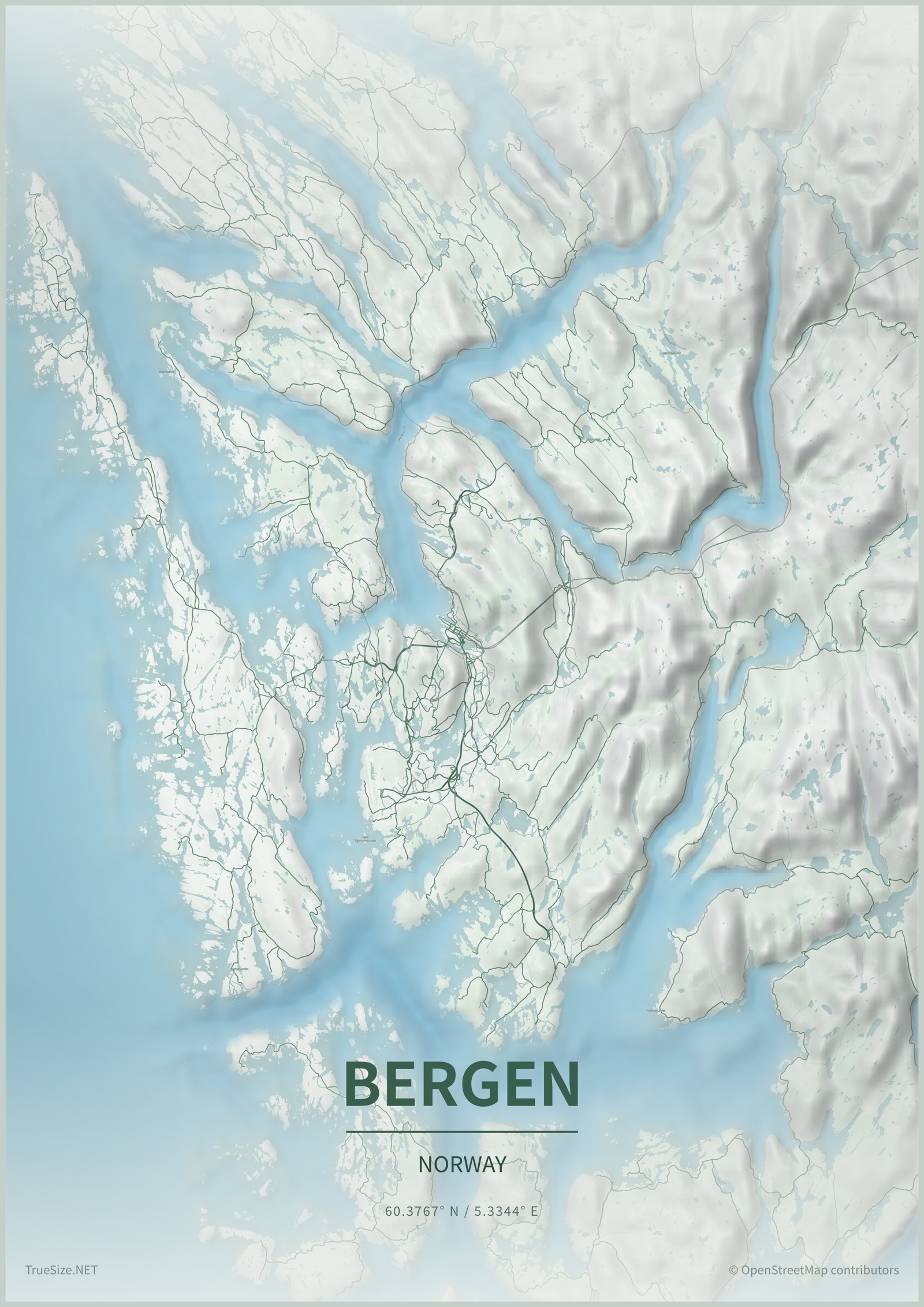
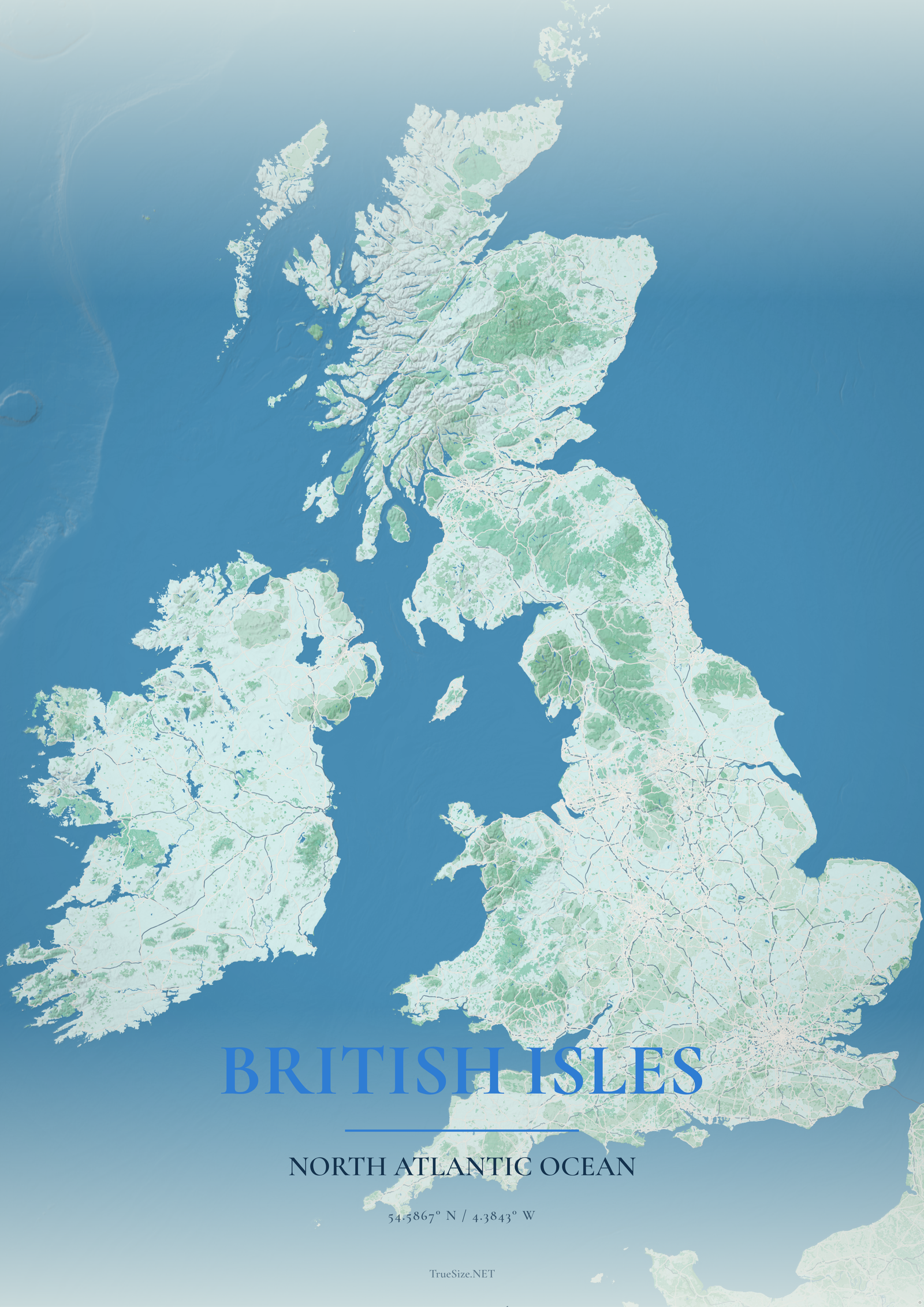
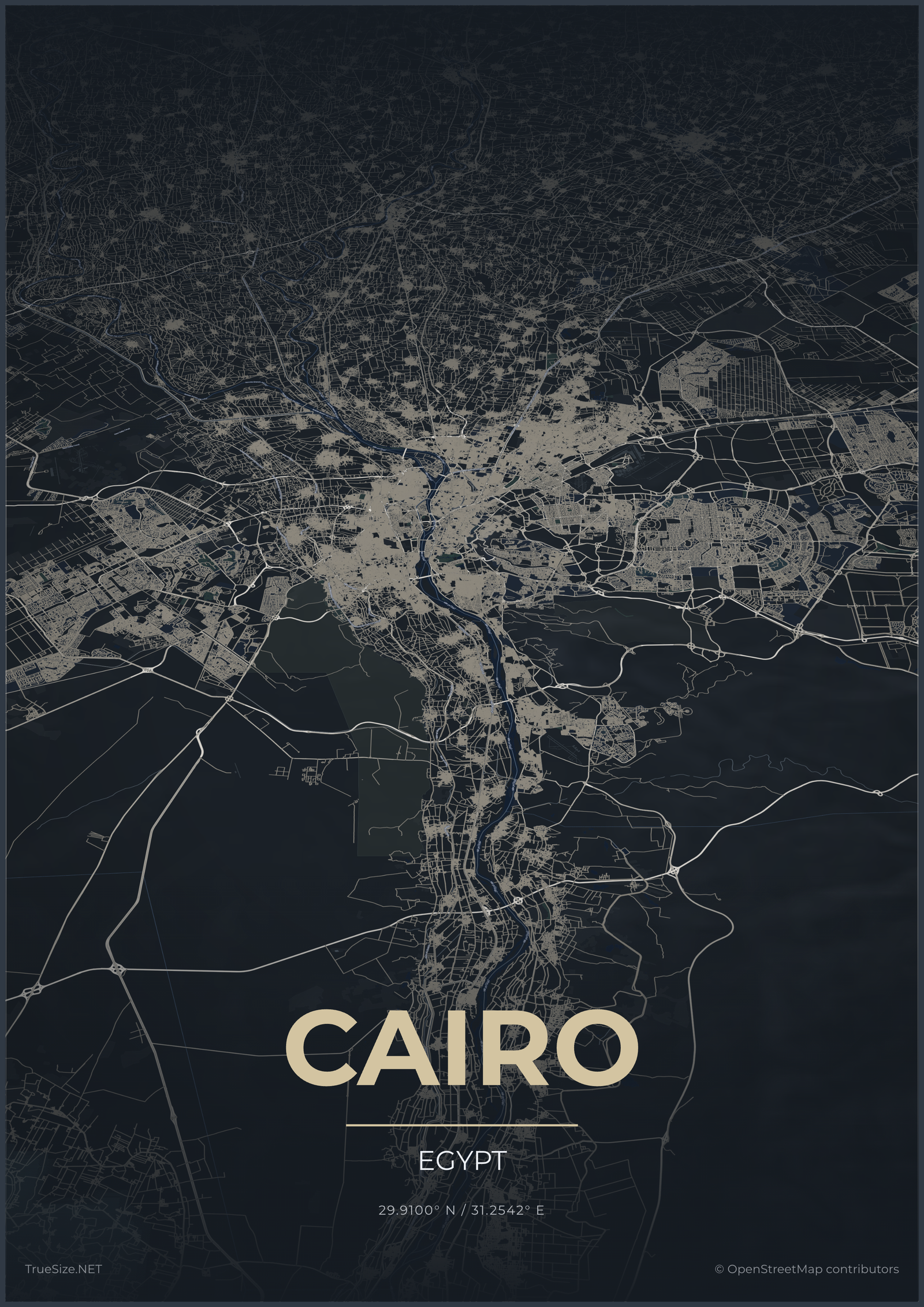

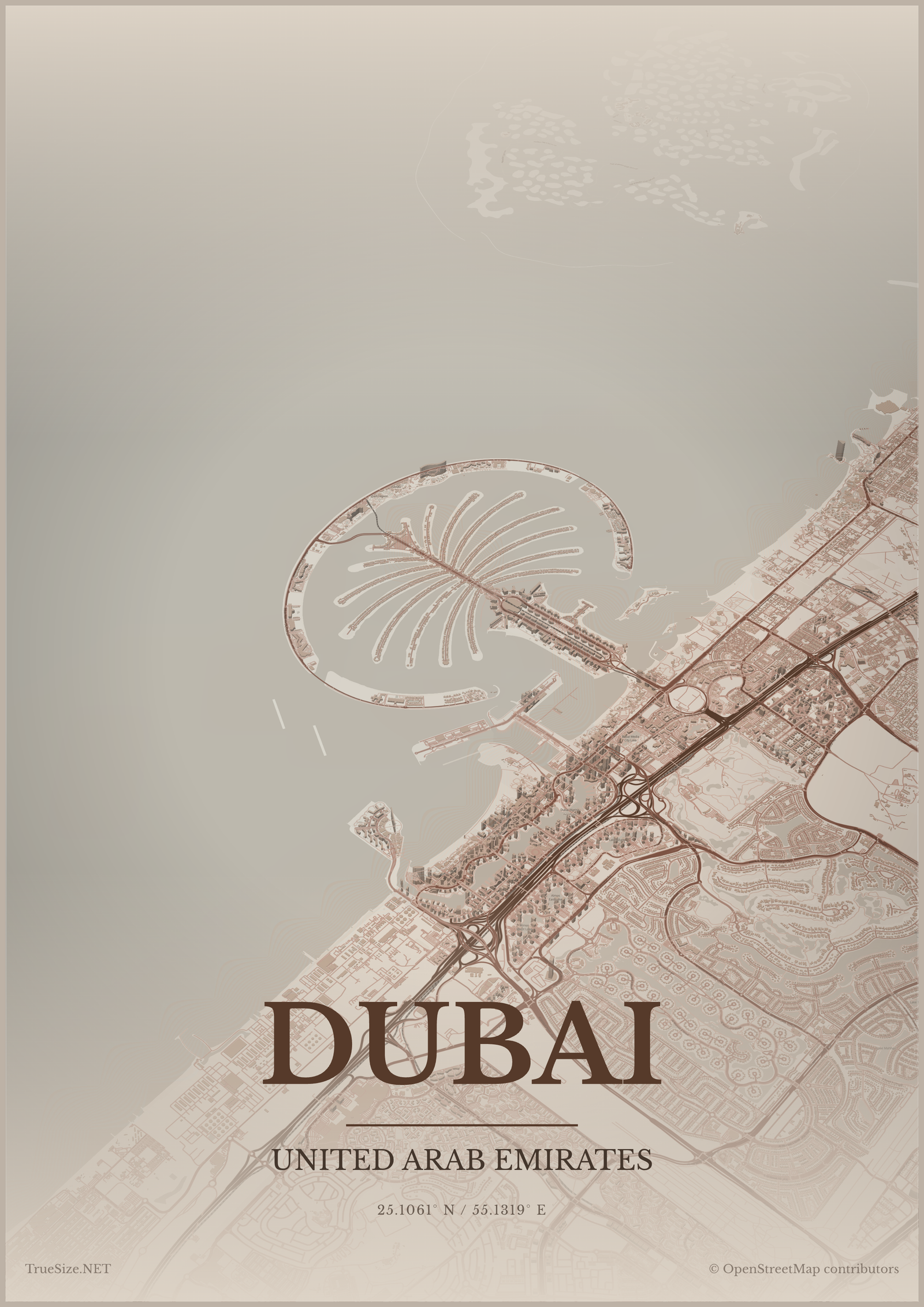
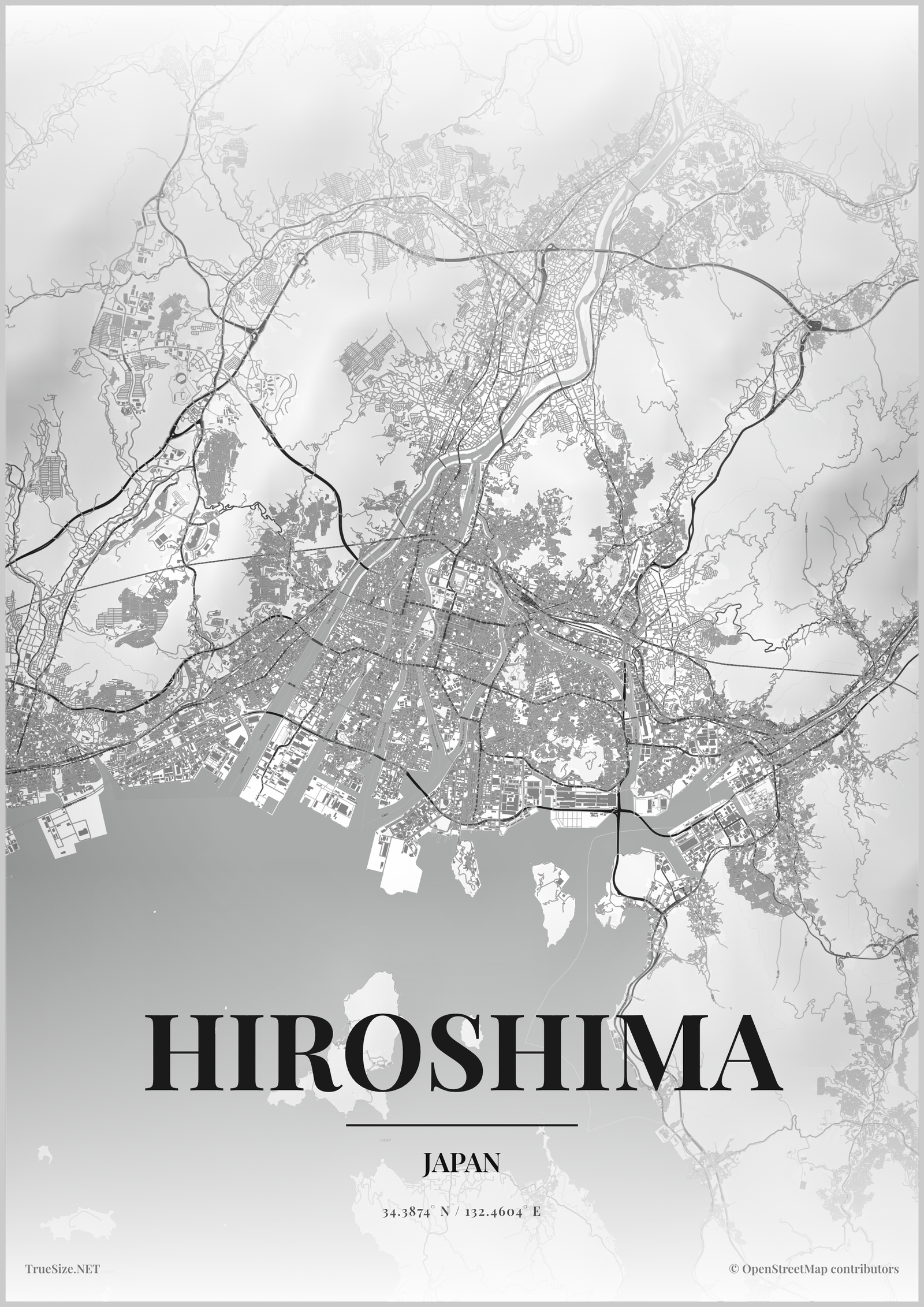
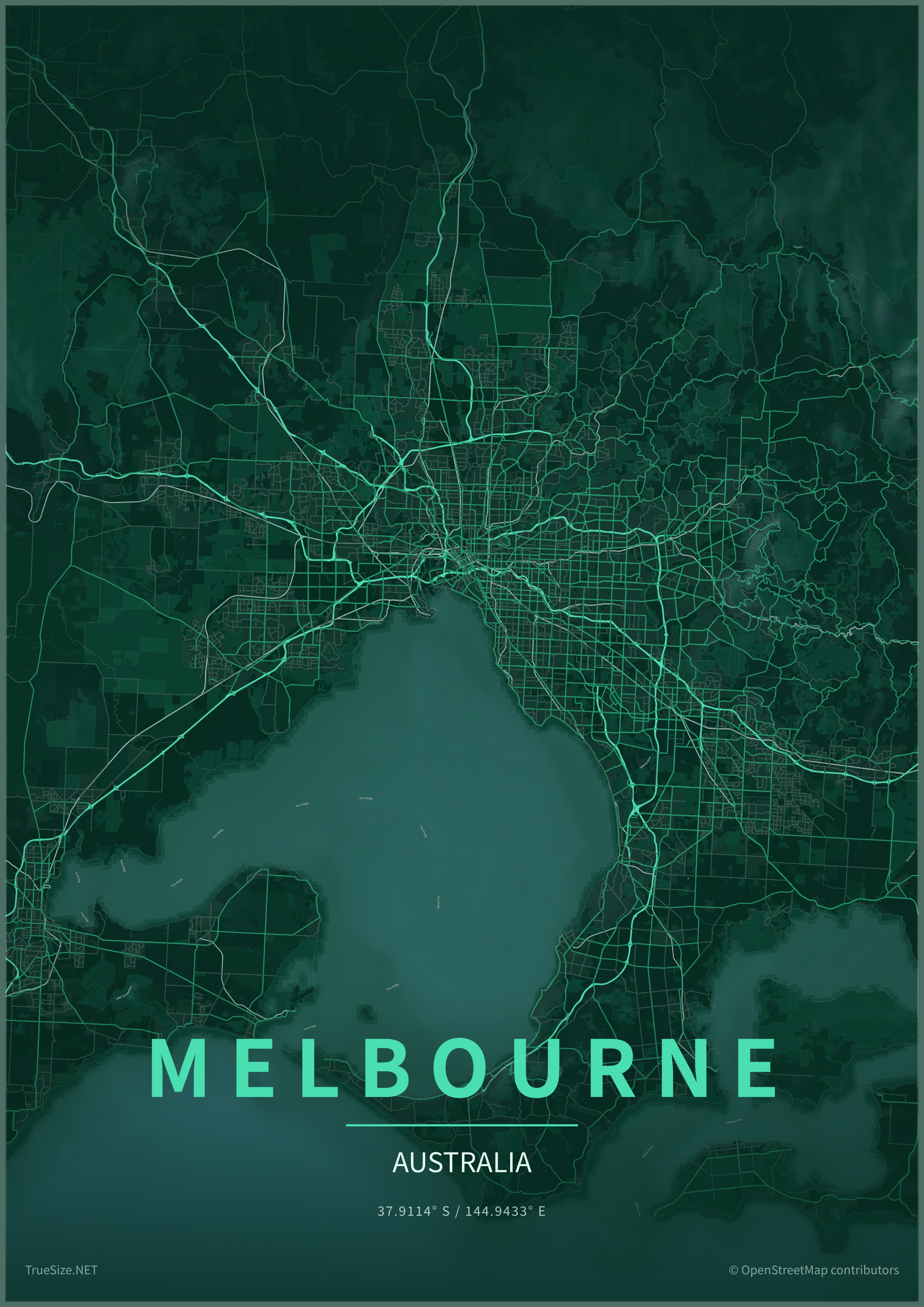
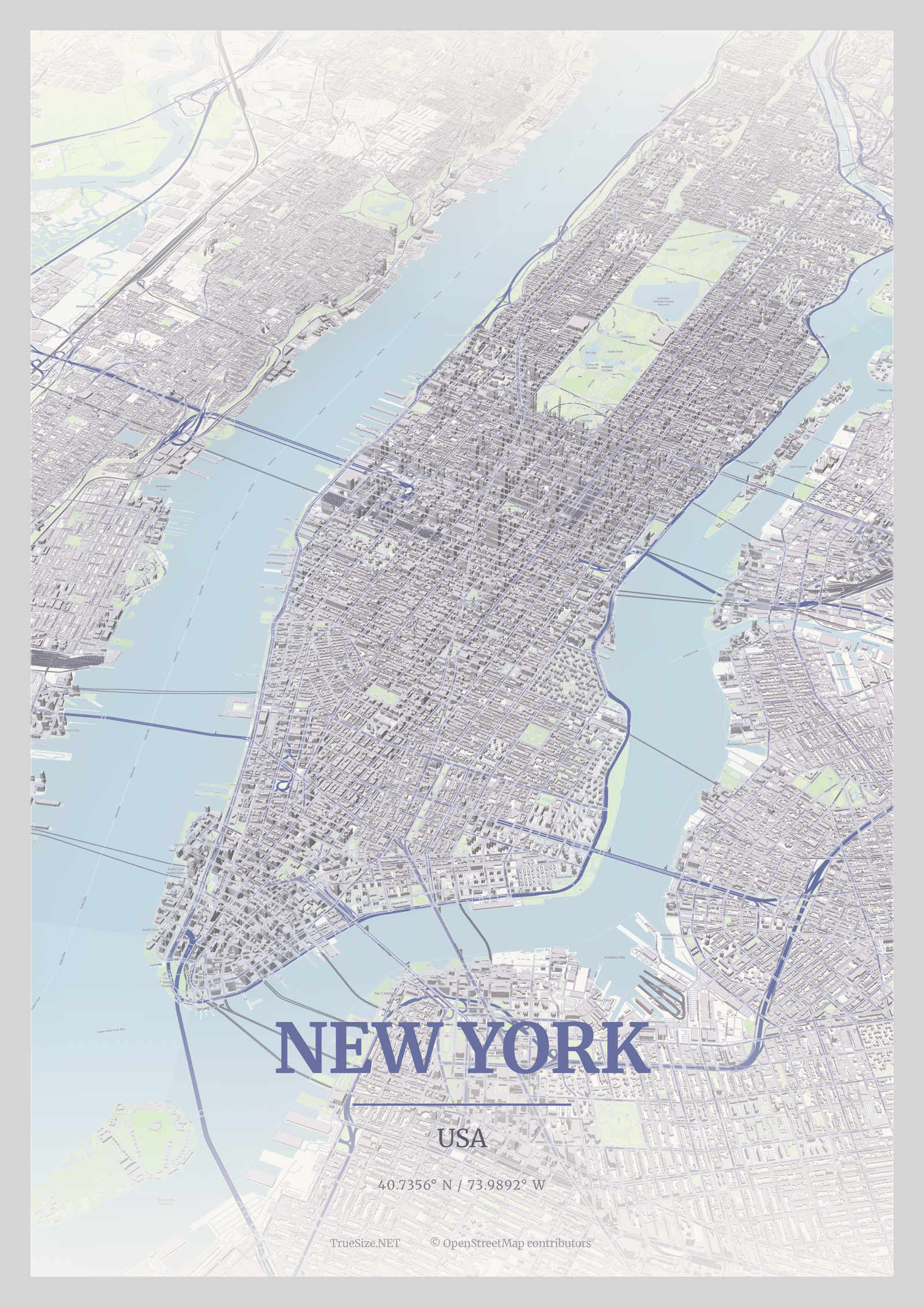
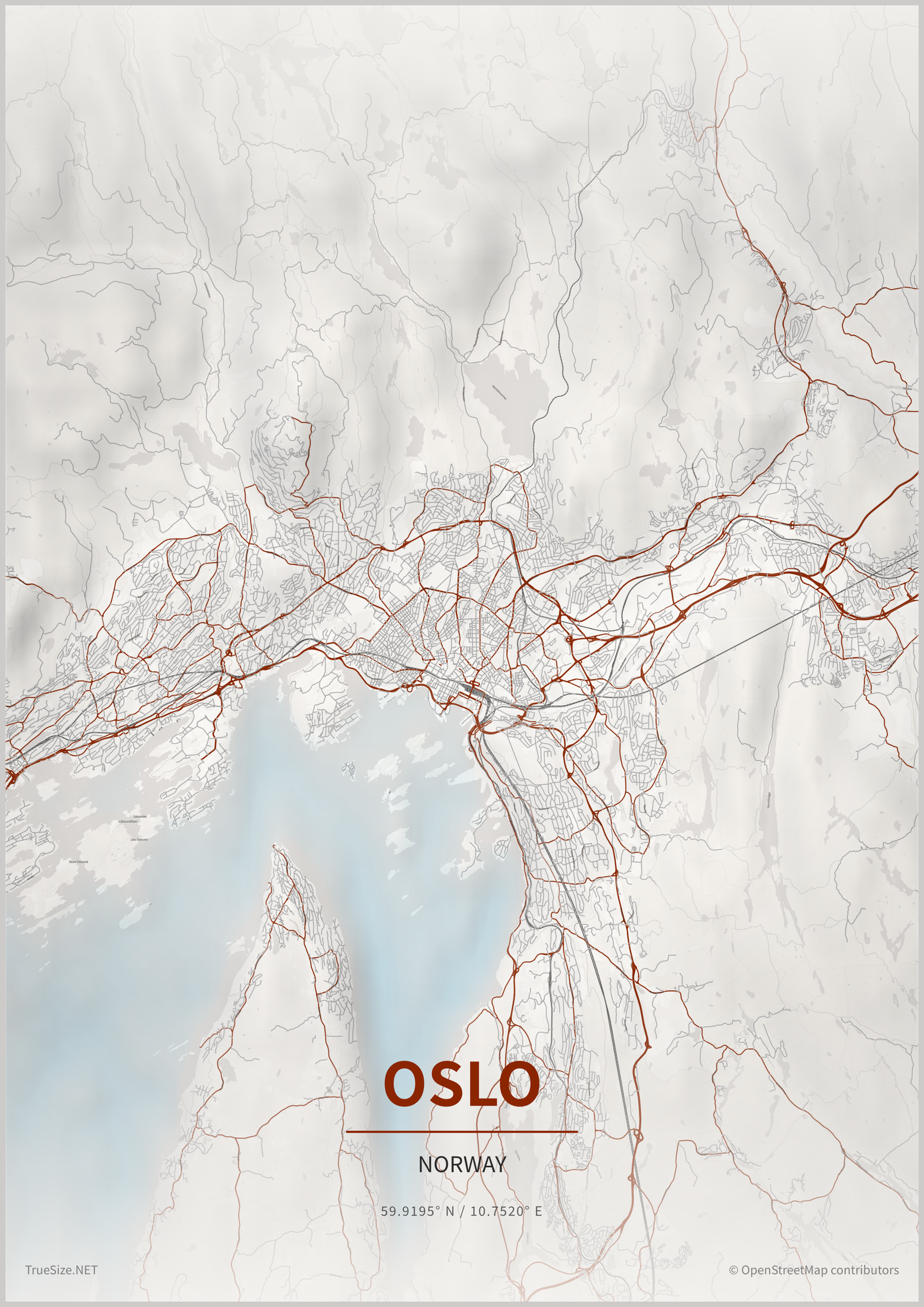
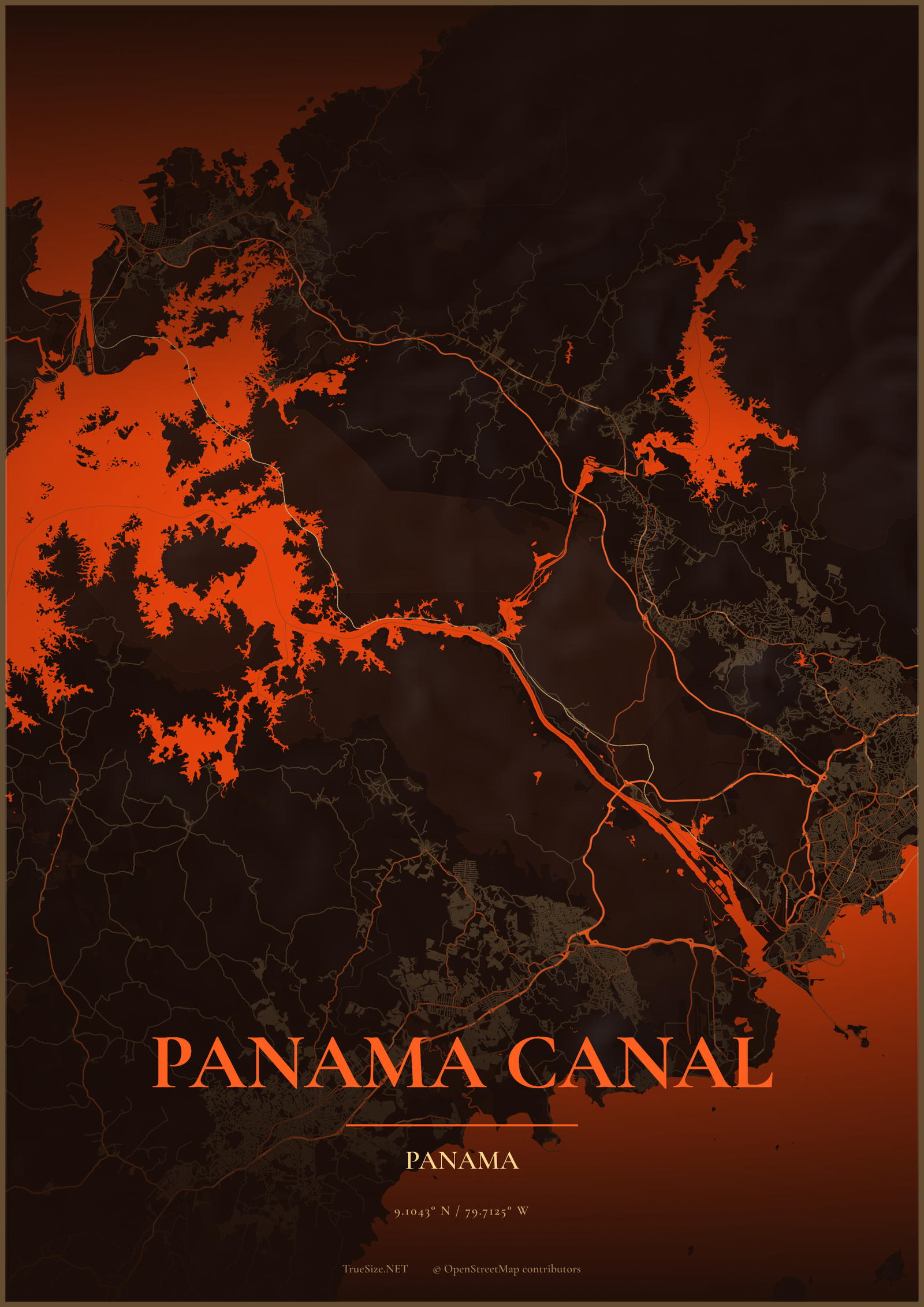
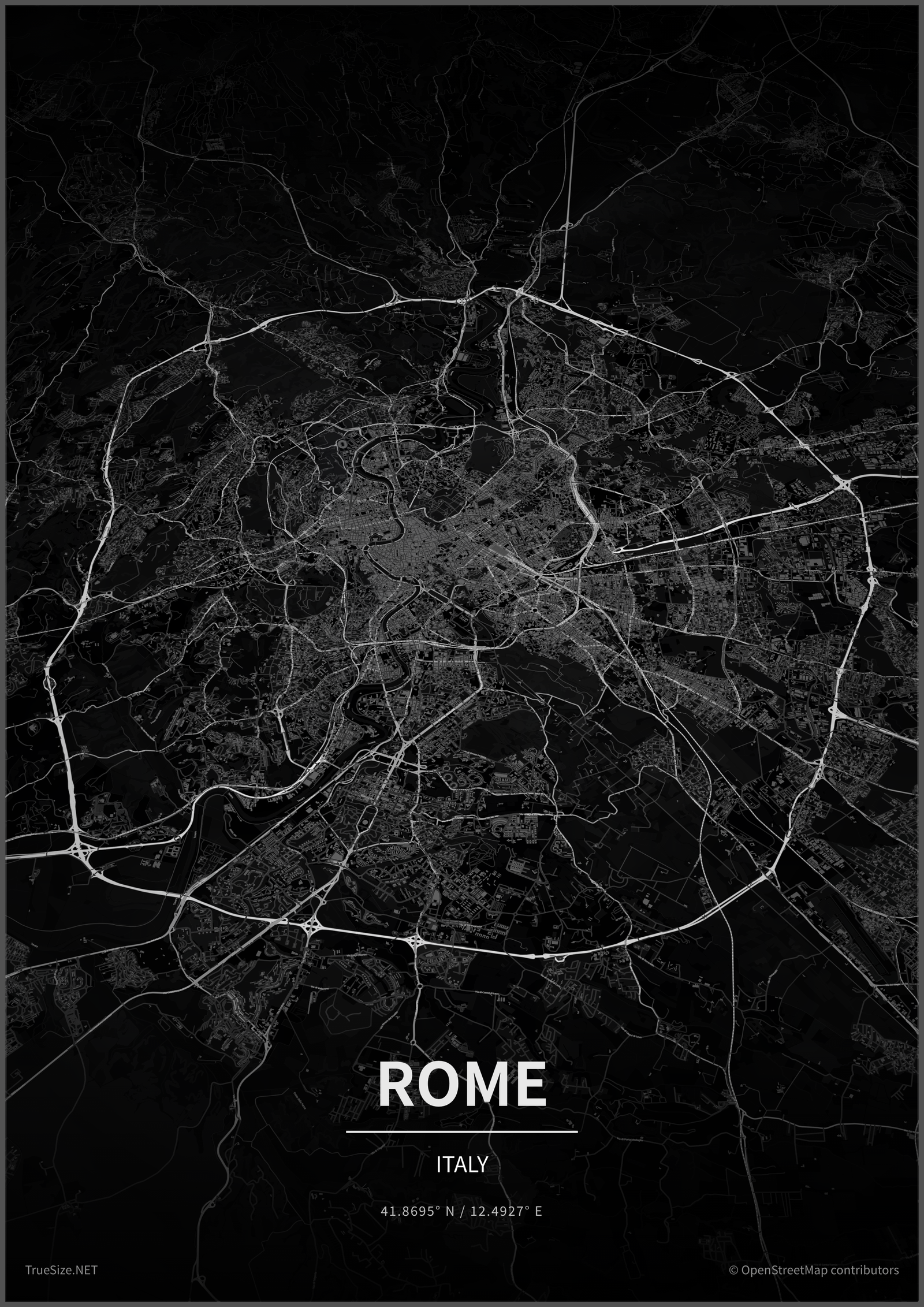
More poster samples are on the examples page.
Posters are available on the website only. See the mobile app page for what the app offers.
Next: learn how to share and export your maps.
Please rotate your device
The map needs portrait orientation on small screens — landscape leaves too little height to work with.