Skip to content
Ads keep this site free 🙏

Draw and Edit Custom Shapes on a Map ​

With the Draw tool you can sketch any shape on the map, such as a farm, a park, a planned lake or an imaginary country, and then move and rotate it like a real region while it keeps its true area. The shape editor goes one step further: it lets you reshape the outline of an existing region by dragging its points.
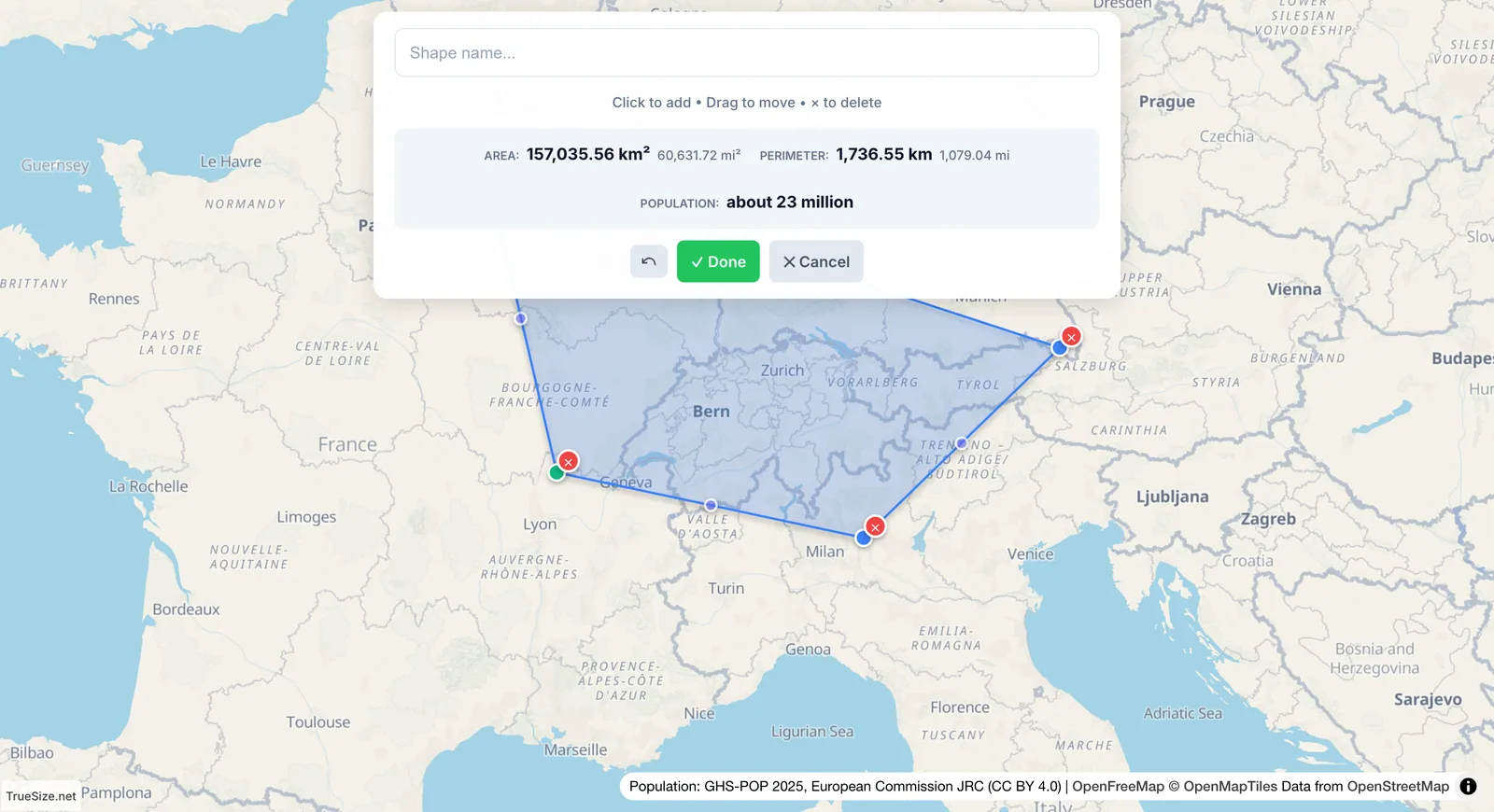
A custom shape being drawn point by point on the map with the draw tool

Drawing a custom shape: click to add points, then finish the shape.

How to draw a shape ​

  1. Open the Tools tab and click Draw (keytip: Alt, then T, then W).
  2. Optionally type a name in the Shape name... box.
  3. Click on the map to add points. The hint on screen reads "Click to add • Drag to move • × to delete".
  4. Use Undo last point if you misplaced one, or drag any point to a better spot.
  5. Click Finish when the outline is done. You need at least 3 points. Click Cancel drawing to throw the shape away.

While you draw, TrueSize shows the area of the shape and the number of people living inside it, using the same population data as the population tool.

What you can do with a finished shape ​

A drawn shape behaves like any other loaded region:

  • Drag it anywhere. It keeps its true area, just like a country. See Moving and Comparing Countries.
  • Hold R while dragging to rotate it (Shift+R turns the other way; [ and ] rotate 1 degree). Flip it with F. The full list is on the keyboard shortcuts page.
  • Click it to open its card, where you can rename it, change its color or duplicate it.
  • Hover over it to see its area and population.
  • Export it with Advanced, then Export, as GeoJSON and open it in any GIS program. See Sharing and Exporting.

A nice trick is to draw your property or neighborhood, then drag it onto a country to see how many times it fits.

How to edit an existing outline ​

You can also change the outline of a region that is already on the map, for example to trim a border or to test "what if".

  1. Load a region and click it so its card opens.
  2. Click Edit shape. A toolbar appears at the top of the map. You can also press E while a region is selected or being dragged.
  3. Drag a point to move it. Click a midpoint between two points to insert a new point there.
  4. Click a point to select it, then use Delete (or the Del key) to remove it.
  5. Click Save to keep the changes or Cancel to discard them.

The toolbar has these buttons:

ButtonWhat it does
Select modeTurns on rectangle selection, so a drag selects many points at once. Holding Shift while dragging does the same.
DeleteRemoves the selected points. Every ring must keep at least 3 points.
Remove holesFills in every hole, such as a lake cut out of the land, in one step.
Undo and RedoStep back and forward through your edits.
Export GeoJSONDownloads the outline you are editing.
Cancel and SaveLeave the editor without or with your changes.

Limits to know ​

  • Edited and drawn shapes are not stored in share links, so the Share button is not available while they are on the map. Export to GeoJSON to keep your work.
  • A region with an edited outline cannot be divided into subdivisions. Reload the original boundary to get its subdivisions back.
  • Some boundaries cannot be edited, and the editor tells you when that is the case.

Suggest your edit to everyone ​

If your edited outline is a real correction, you can send it to the TrueSize team. Save the edit, select the region again and choose Suggest a better boundary. Suggestions are reviewed before they go live. The details are on Suggest Flags, Names and Borders.
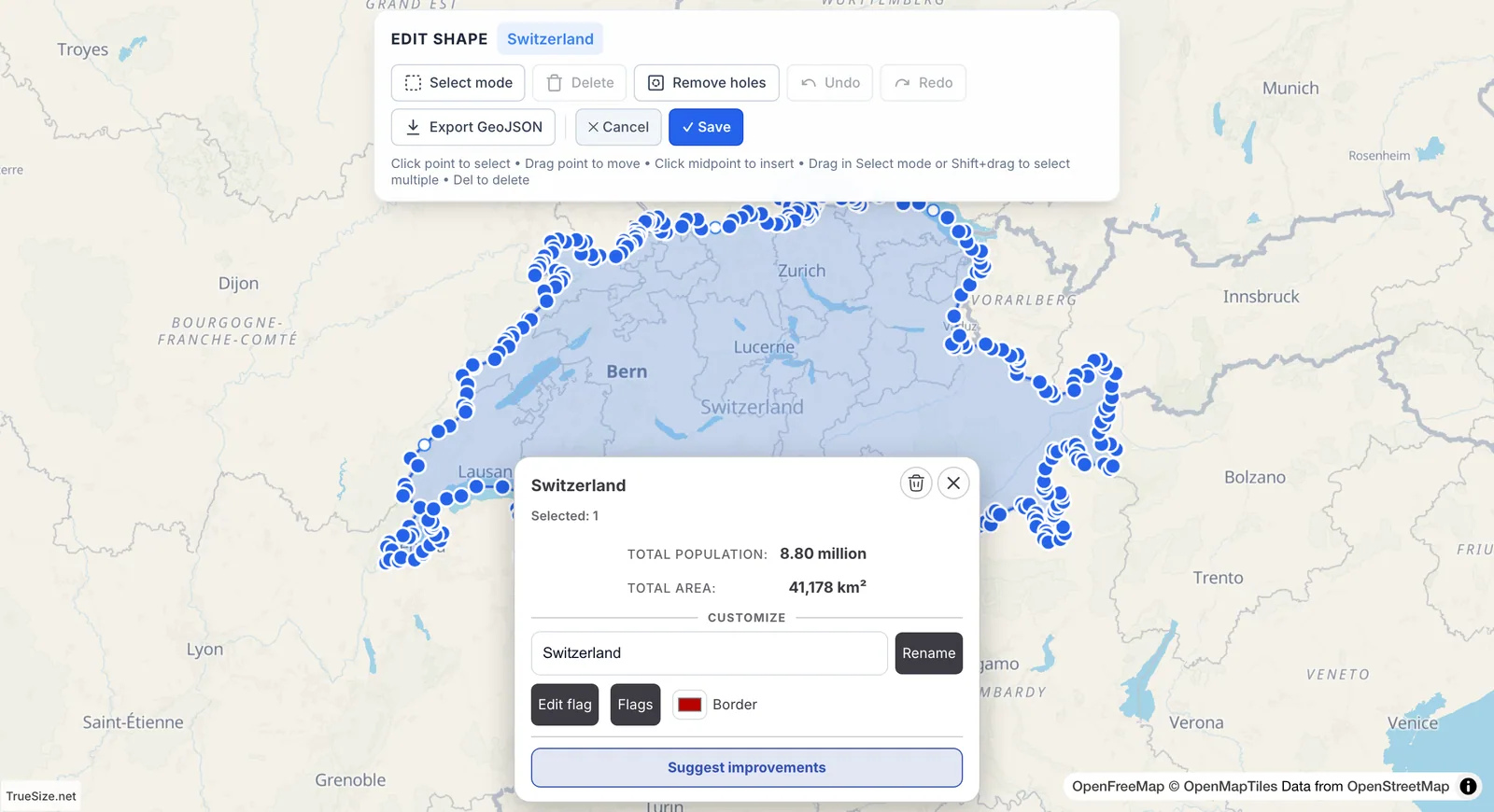
The shape editor toolbar and a region outline with draggable points for editing a country's border

The shape editor: drag points, insert new ones at midpoints, and save when you are happy.

Examples to try ​

  • Draw a rough outline of your home town, then drag it over a country to compare sizes.
  • Edit the outline of an island, remove a few points and watch the area change in its card.
  • Compare two ideas for a boundary: duplicate a region, edit the copy and place both side by side.

Where it works ​

Drawing works on the web and in the mobile app, where you tap the map to add points and tap Done to save. Editing the outline of a built-in region is a web feature. In the app you can reshape a single-ring shape that you created with the Draw tool.


Next: Divide and Merge Regions

Please rotate your device

The map needs portrait orientation on small screens — landscape leaves too little height to work with.