
English
English
Appearance
TrueSize can be driven almost entirely from the keyboard. Press Alt (Option on a Mac) to show a letter on every ribbon tab, press the tab letter, then press the letter shown on the action you want. Other keys rotate, flip, copy and delete regions, move through search suggestions and step through the timeline.
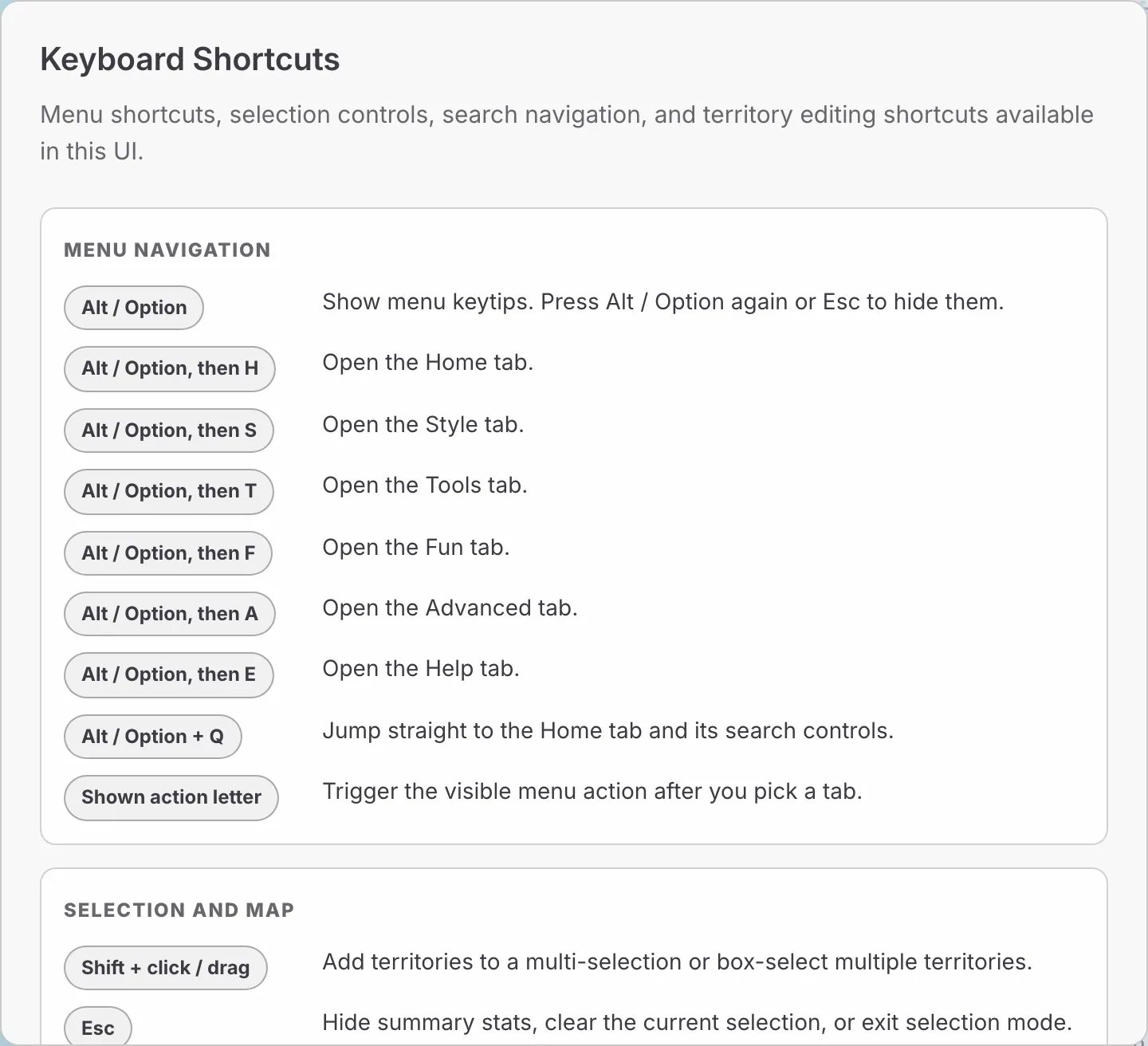
Open the list inside the app with Help, then Keyboard (Alt, E, K).
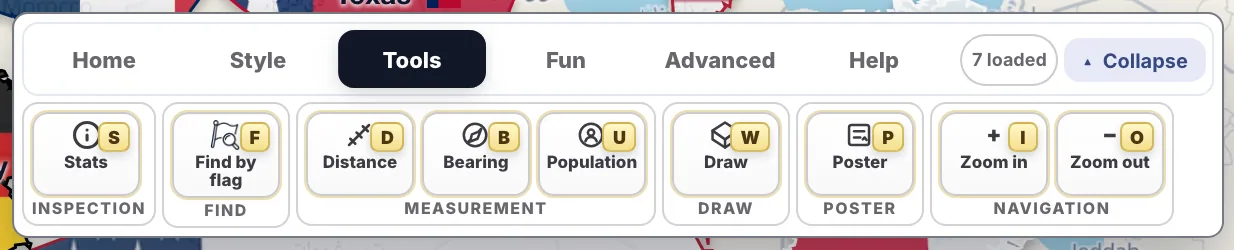
Keytips on the ribbon. Press the tab letter first, then the action letter.
| Tab | Tab key | Actions and their keys |
|---|---|---|
| Home | H | Flags F, Labels L, Select S, Divide V, Merge M, Remove R |
| Style | S | Customize K, Visuals C, Reset R, Globe G, Clouds L, Terrain T, Seafloor W |
| Tools | T | Stats S, Find by flag F, Distance D, Bearing B, Population U, Draw W, Poster P, Zoom in I, Zoom out O |
| Fun | F | Challenge C, Flags F, Nukes B, Compare P, Living Earth E, Planets M, Grid G, Size S, North N, Radio R |
| Advanced | A | Share S, Load A, Import I, Export E |
| Help | E | Examples E, Tutorial T, About A, Keyboard K, Reddit R, Support S |
Some actions only appear when they apply. For example, Clouds needs the globe, and Poster is not available on the MapToolkit basemap.
Alt+Q jumps straight to the search box on the Home tab, whatever tab is open.
These keys work while you hold a region with the mouse, or when a single region is selected.
| Key | What it does |
|---|---|
| R (hold) | Rotates 5 degrees counter-clockwise |
| Shift + R | Rotates 5 degrees clockwise |
| [ | Rotates 1 degree counter-clockwise |
| ] | Rotates 1 degree clockwise |
| F | Flips (mirrors) the region |
| E | Edits the region or custom shape in the shape editor |
| Delete or Backspace | Removes the region |
| Ctrl/Cmd + C | Copies the region or union |
| Ctrl/Cmd + V | Pastes the copy at the mouse position |
| Key | What it does |
|---|---|
| Shift + click | Adds a region to the selection |
| Shift + drag | Draws a box and selects every region inside it |
| Esc | Closes the summary, clears the selection or leaves selection mode |
Selection shortcuts work with Shift held down, or while the Select button on the Home tab is active. The Moving and Comparing page shows them in action.
When the map is tilted (3D perspective), Ctrl/Cmd with the arrow keys changes the pitch and bearing, and Ctrl/Cmd+0 resets the view.
| Key | What it does |
|---|---|
| Down and Up | Move through the suggestions |
| Enter | Loads the highlighted suggestion |
| Esc | Closes the suggestion list |
These keys work while the timeline panel is open. Open it with the Modern/Historical switch on the Home tab. See Historical Borders Map.
| Key | What it does |
|---|---|
| Left arrow | Previous change |
| Right arrow | Next change |
| Shift + Left arrow | One year back |
| Shift + Right arrow | One year forward |
| Space | Play or pause |
| T | Jump to today |
| Home / End | First year / today (when the slider is focused) |
| I | Show the info card |
These keys and mouse actions work while the toolbar from Edit shape is open.
| Action | What it does |
|---|---|
| Click a point | Selects it |
| Drag a point | Moves it |
| Click a midpoint | Inserts a new point |
| Shift + drag | Selects several points |
| Del | Deletes the selected points |
The two games are played with the mouse or by touch. Direct links open them without the ribbon: truesize.net/#game and truesize.net/#flagquiz. Read more on the TrueSize Challenge and Flag Quiz pages.
Keyboard shortcuts and keytips are a web feature, designed for desktop computers. The mobile app has no keyboard shortcuts, and uses touch gestures and its bottom ribbon instead.
Please rotate your device
The map needs portrait orientation on small screens — landscape leaves too little height to work with.