Skip to content
Ads keep this site free 🙏

Divide a Country into States and Merge Regions ​

The Divide tool splits a region into its subdivisions with a single click: the USA into states, a state into counties, and so on down the hierarchy. Merge puts them back together, and Create union lets you group any regions you like into a new shape of your own.
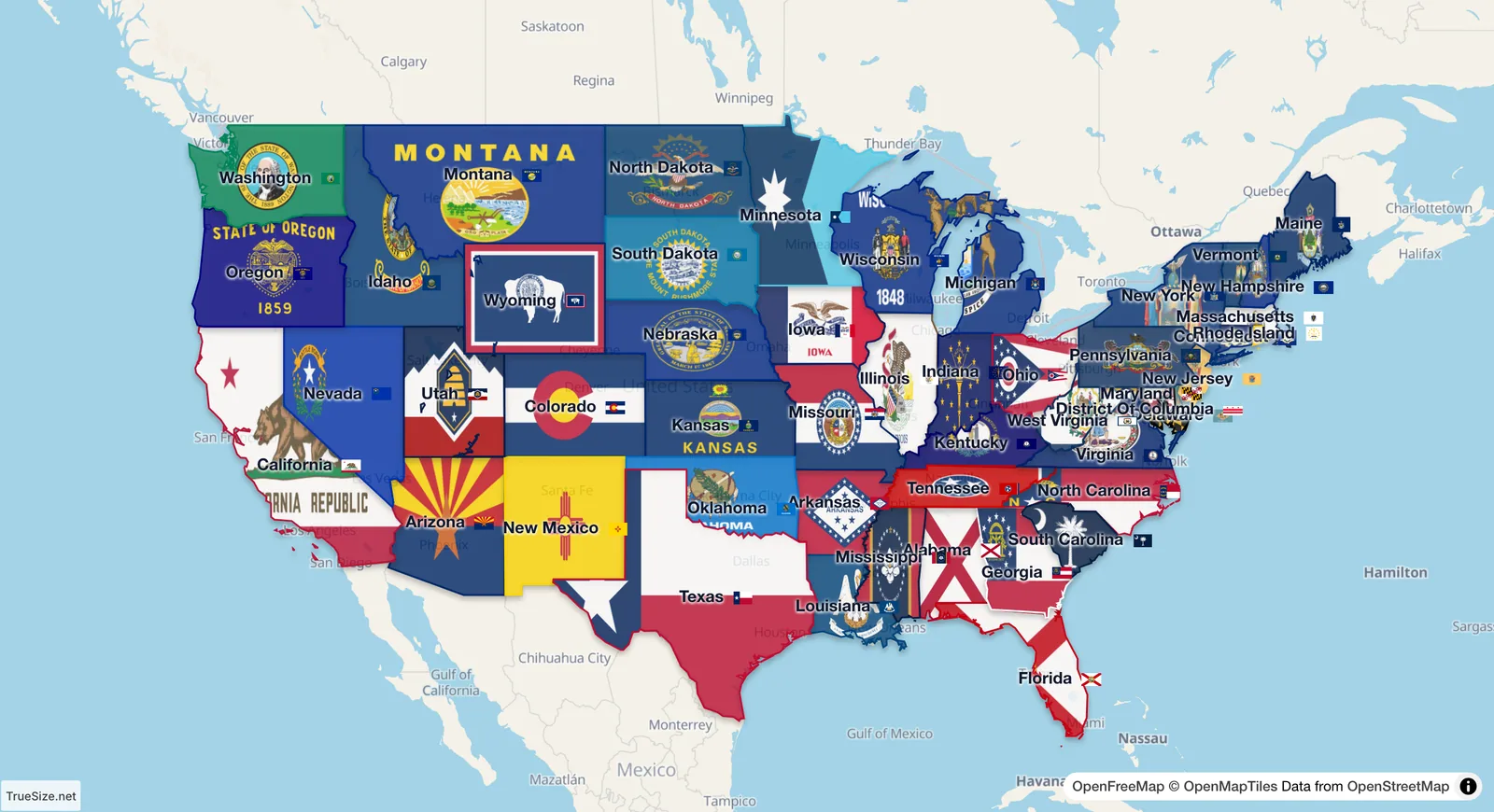
The USA divided into its states with each state loaded as a separate region that can be moved

The USA after using Divide: every state is now its own region.

Open this map in TrueSize

How to divide a region ​

  1. Load a region, for example by typing its name in the search box on the Home tab.
  2. Click Divide (keytip: Alt, then H, then V). The hint reads "Click on any territory to divide it into subdivisions".
  3. Click the region. TrueSize replaces it with its subdivisions and shows how many regions are loaded.
  4. Click a subdivision to go one level deeper, for example a state into its counties.
  5. Click Divide again to leave divide mode.

Large countries can have thousands of parts, so dividing may take a moment. TrueSize shows a progress message while it loads them.

How to merge regions back ​

  1. Click Merge on the Home tab (keytip: Alt, then H, then M).
  2. Click any subdivision. It is merged into its parent territory. The hint reads "Click on any subdivision to merge it into its parent territory".

This is the quickest way to undo a divide without reloading the map.

Create your own union ​

A union is a group of regions that moves as one piece. It is useful for custom comparisons, such as "all the countries of one trade deal against a continent".
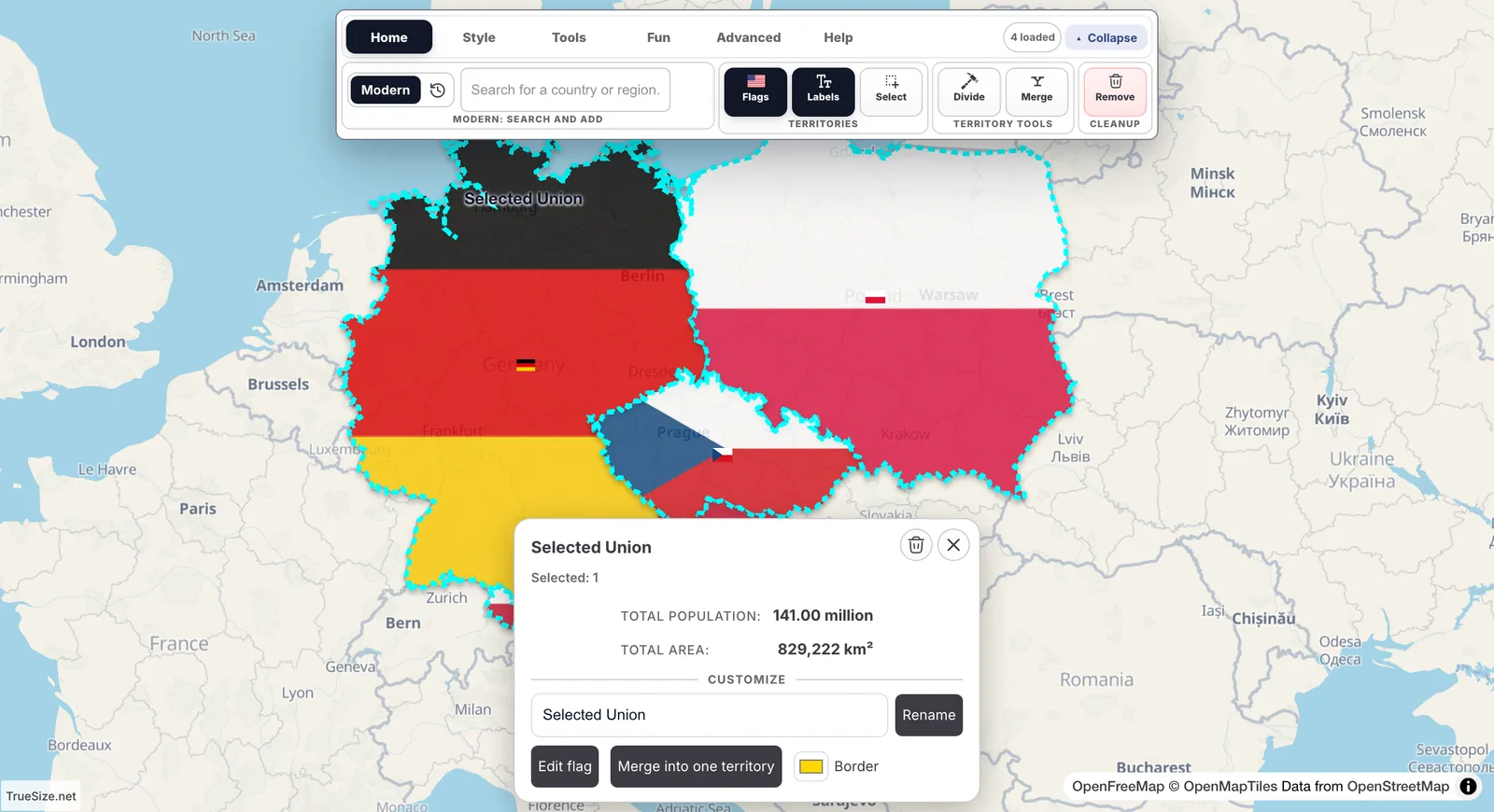
  1. Select two or more regions. Use the Select button, hold Shift while clicking, or Shift+drag a box. See Moving and Comparing Countries.
  2. In the selection panel that opens, click Union (tooltip: Create union). The group is created with the name "Selected Union".
  3. Type a new name in the Union name field and click Rename. You can also change the union's color there.
  4. Drag the union. All of its members move together and keep their true size.
  5. To turn the group into one single shape, choose Merge into one territory in the union's card.
Naming a union created from several selected regions on the map

A union made from a selection, ready to be named.

Ready-made unions ​

You do not always need to build a union yourself. Searching for names such as the EU or NATO loads their member countries as a group. See Compare the EU, NATO, BRICS and Other Alliances.

Things to know ​

  • Historical territories cannot be divided into subdivisions. Switch back to modern borders to use Divide.
  • Divide and Merge are off while a planet is shown.
  • A region whose outline you edited cannot be divided. Reload the original boundary first.
  • The Stats button on the Tools tab adds up the area and population of everything you have loaded, which is handy after a divide.
  • Divided regions can be selected, moved, colored and removed one by one, just like any other region.

Examples to try ​

  • Divide the USA into states, then move Texas and California next to Europe's countries.
  • Divide a country such as France into its regions and compare them with US states.
  • Create a union from three neighboring countries and compare it with a fourth.
  • Load Greenland and divide it into its municipalities to see how large the parts are.

Where it works ​

Divide, Merge and unions work on the web and in the mobile app. In the app, the tools for unions are in the selection sheet, where you can also use Break union to undo a group.


Next: Keyboard Shortcuts

Please rotate your device

The map needs portrait orientation on small screens — landscape leaves too little height to work with.