Skip to content
Ads keep this site free 🙏

34 Map Styles: Dark, Vintage, Neon and More ​

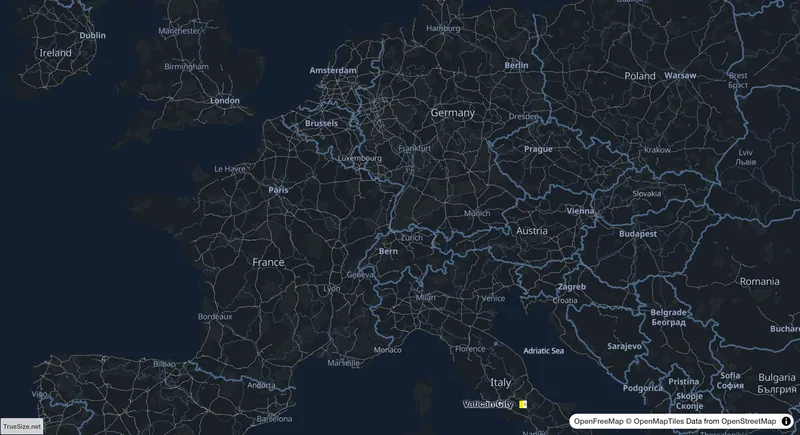
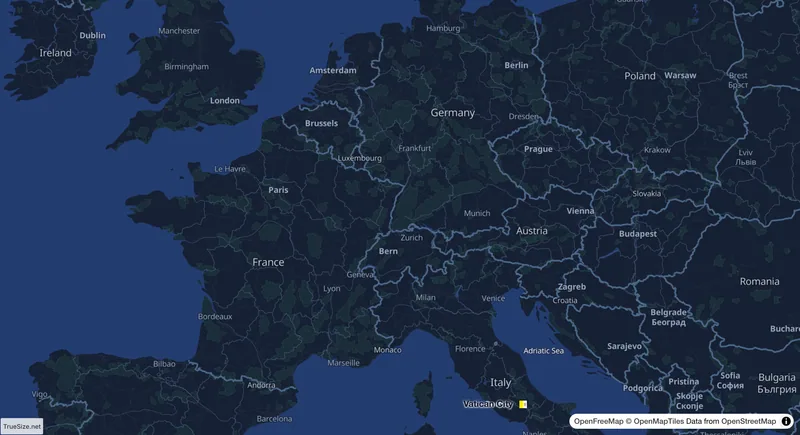
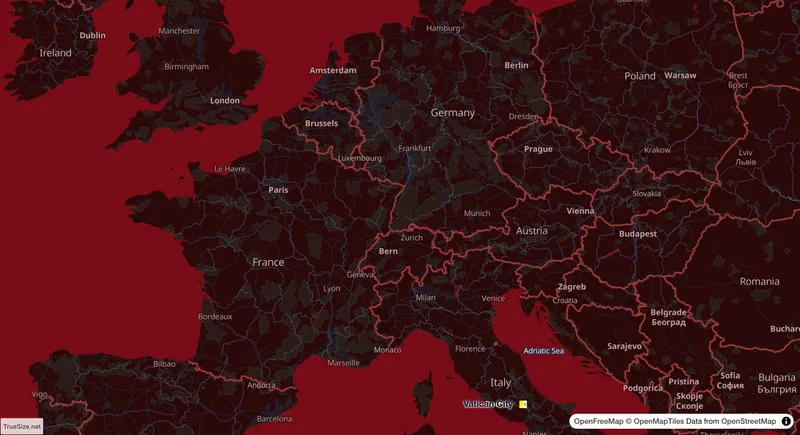
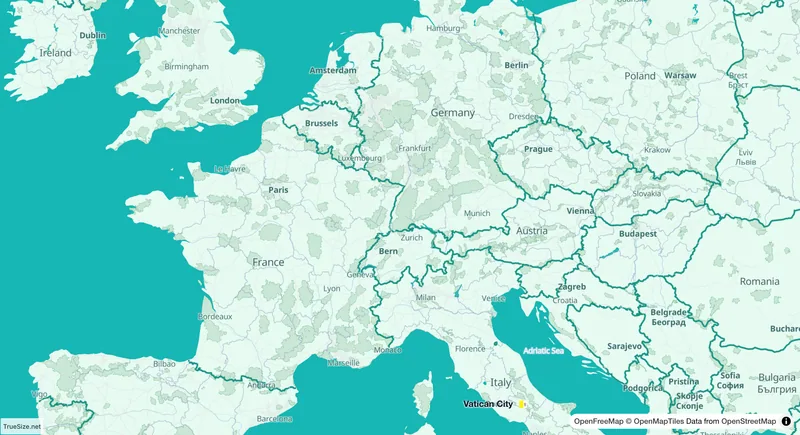
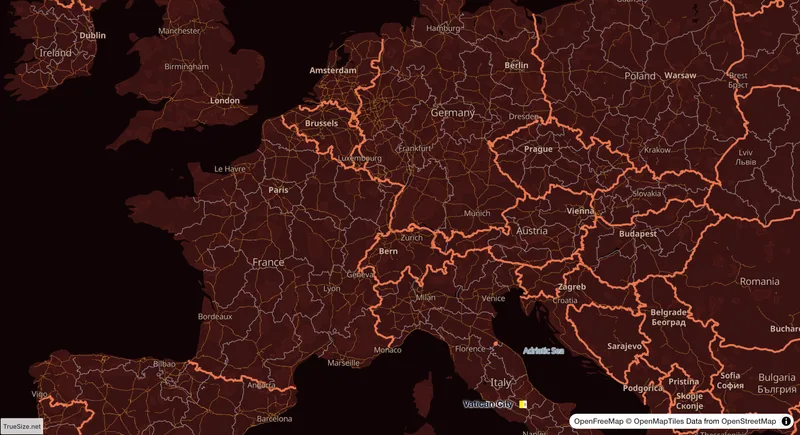
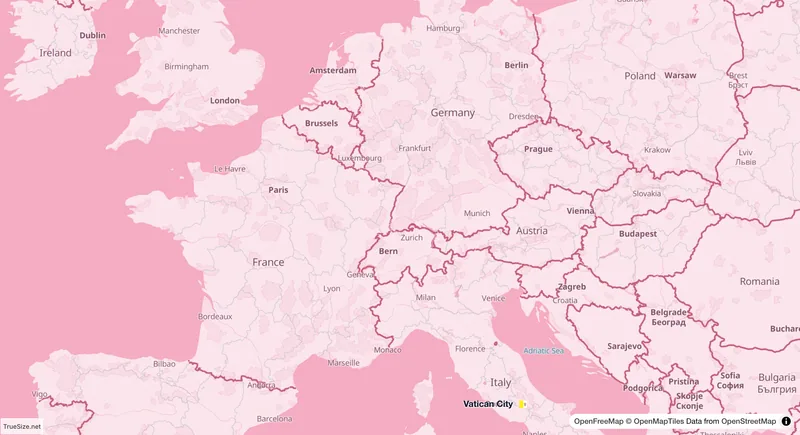
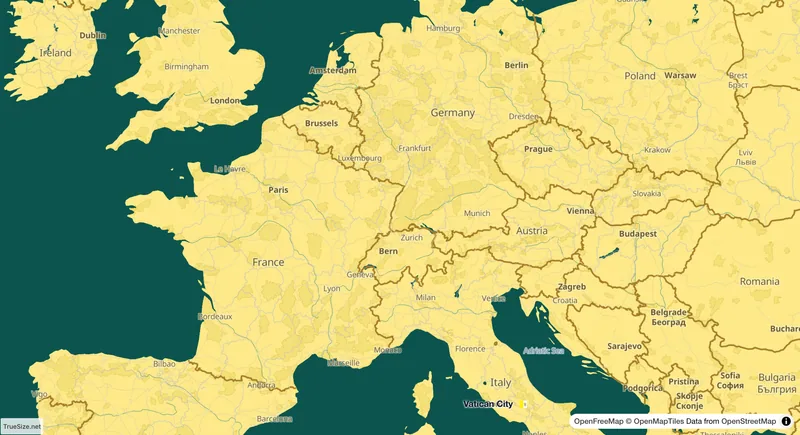
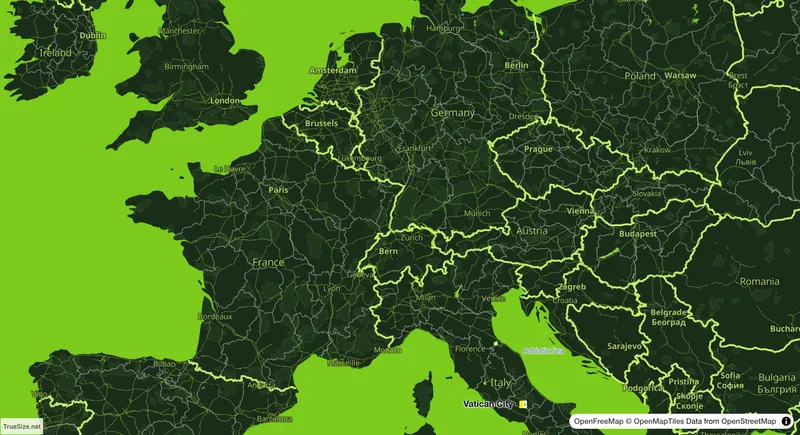
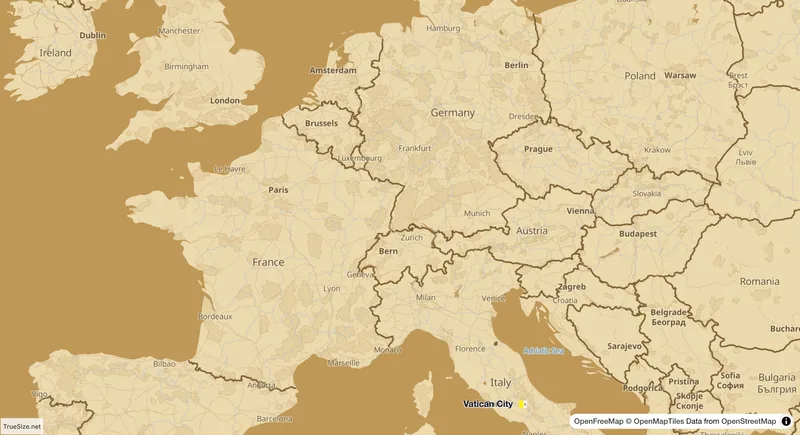
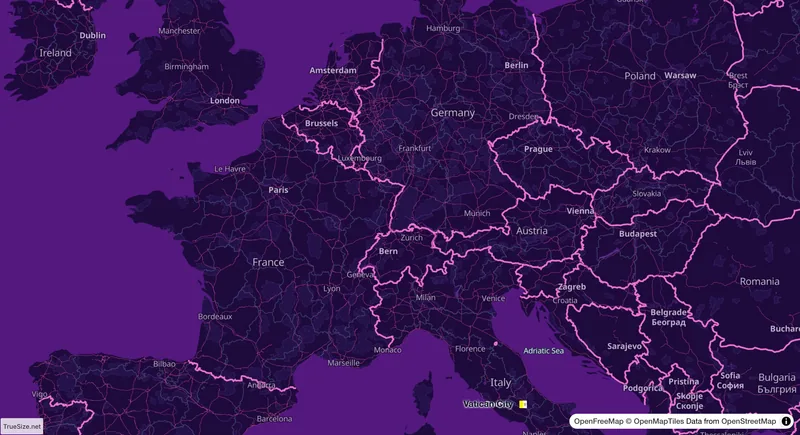
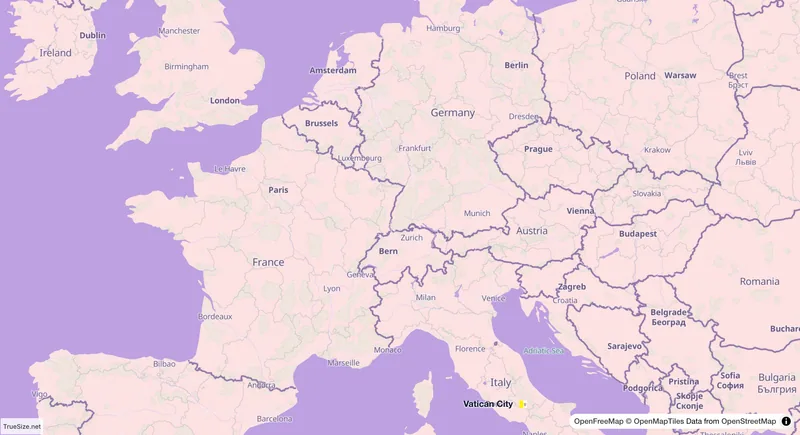
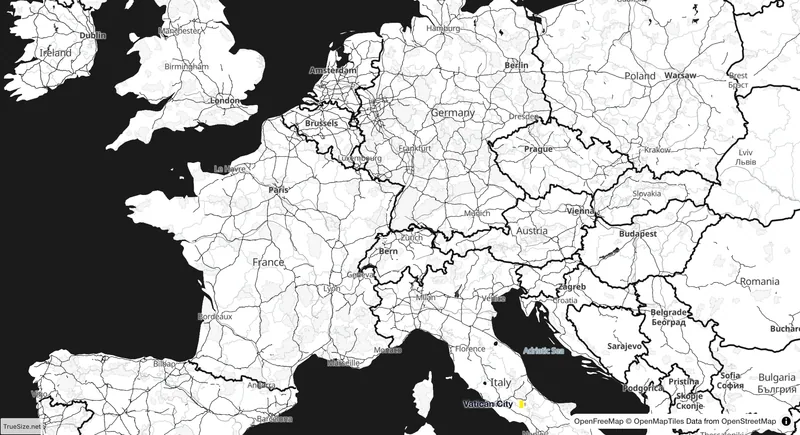
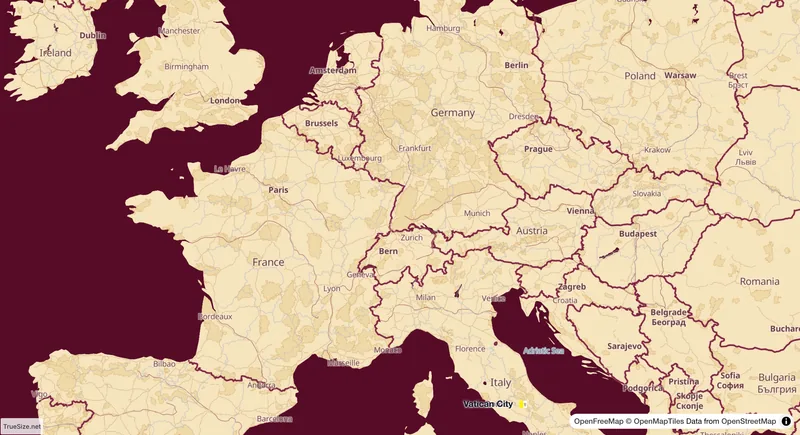
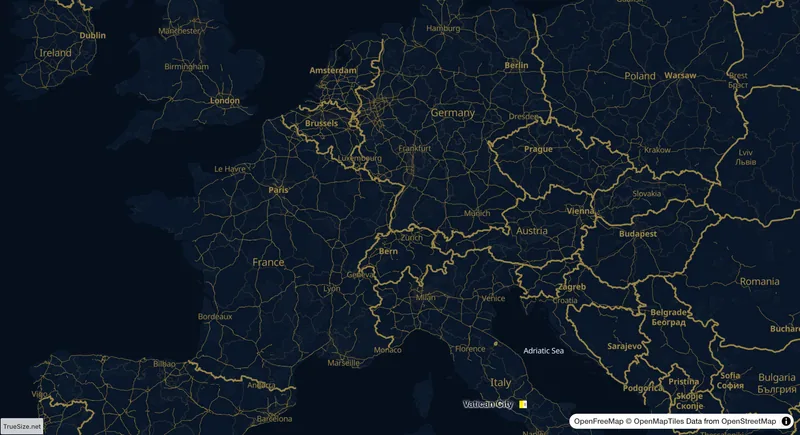
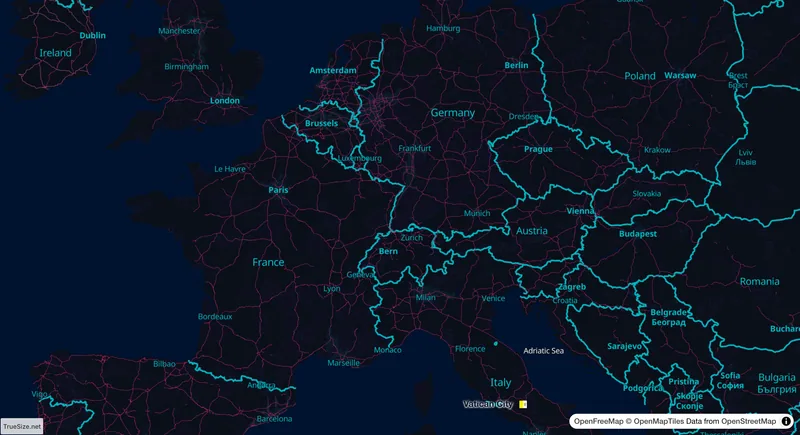
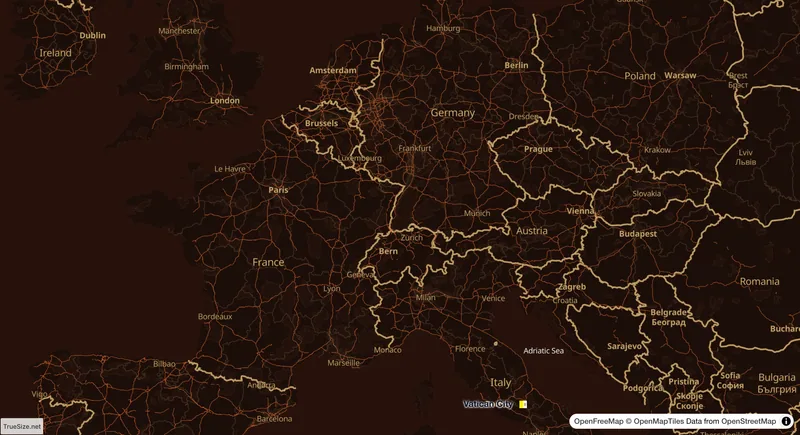
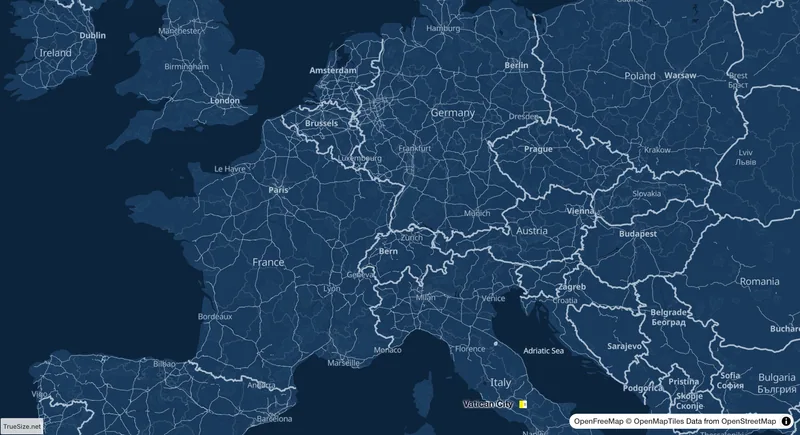
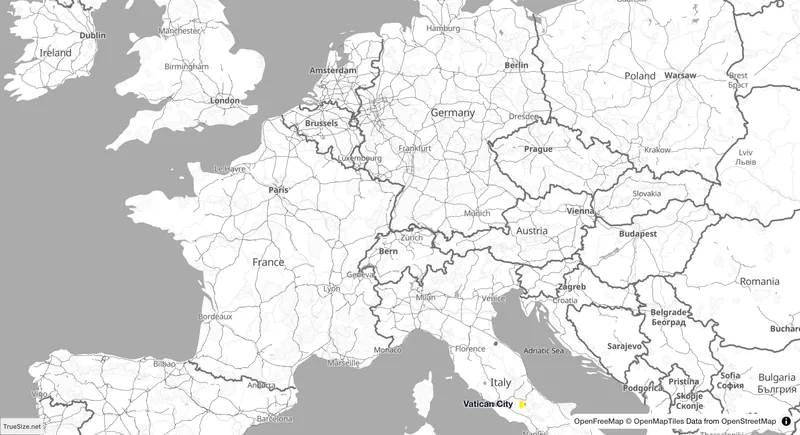
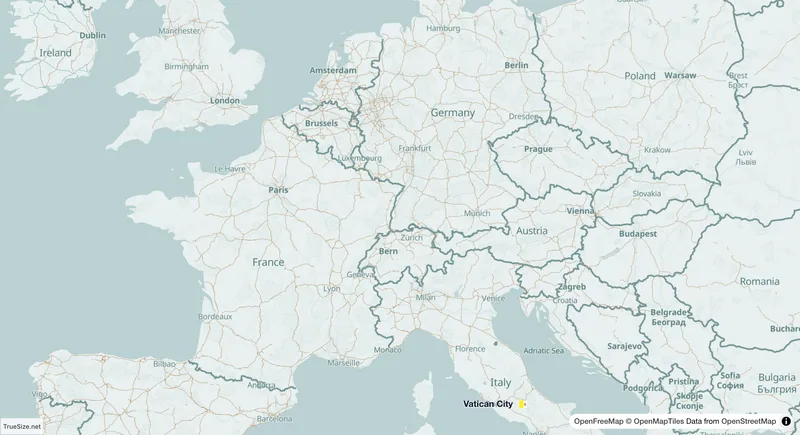
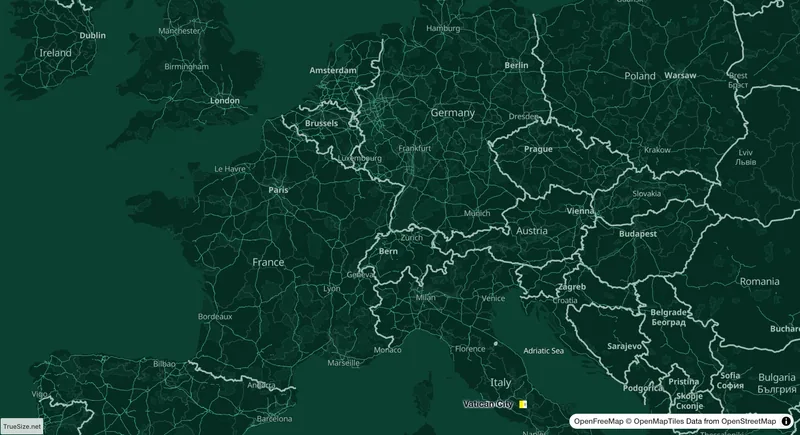
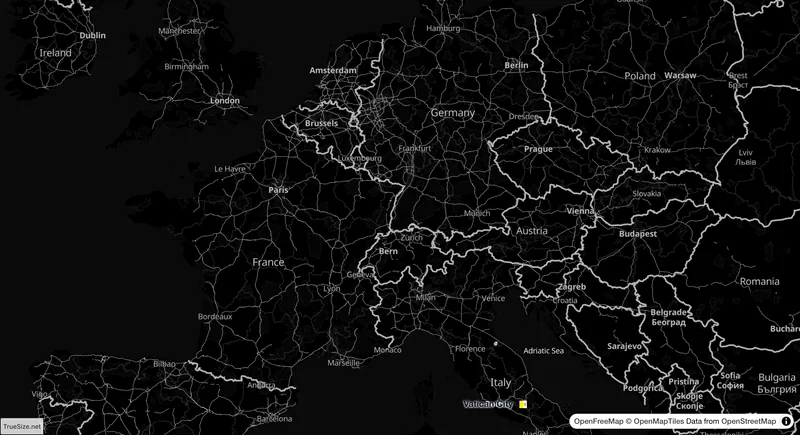
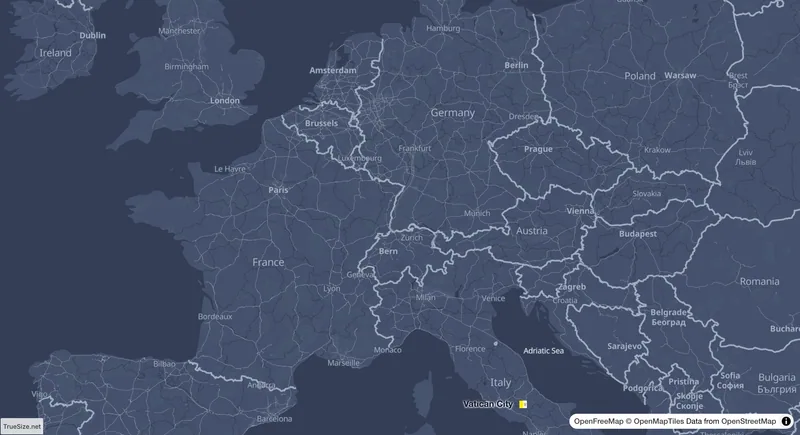
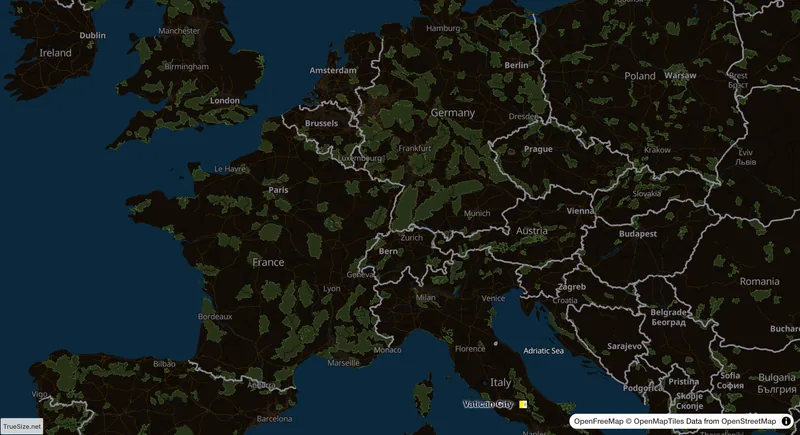
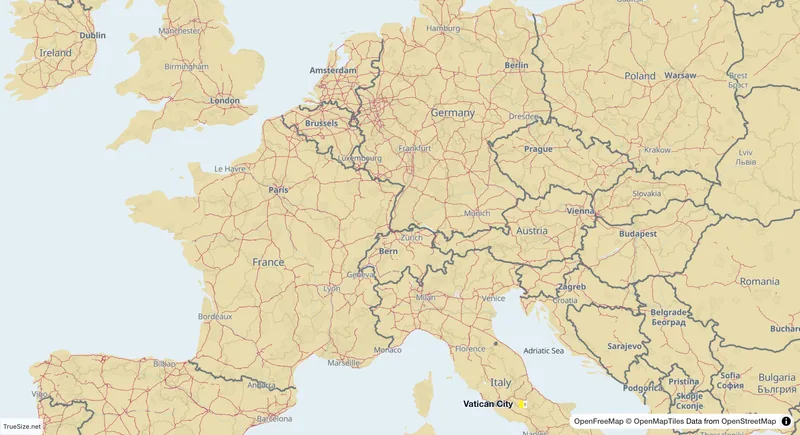
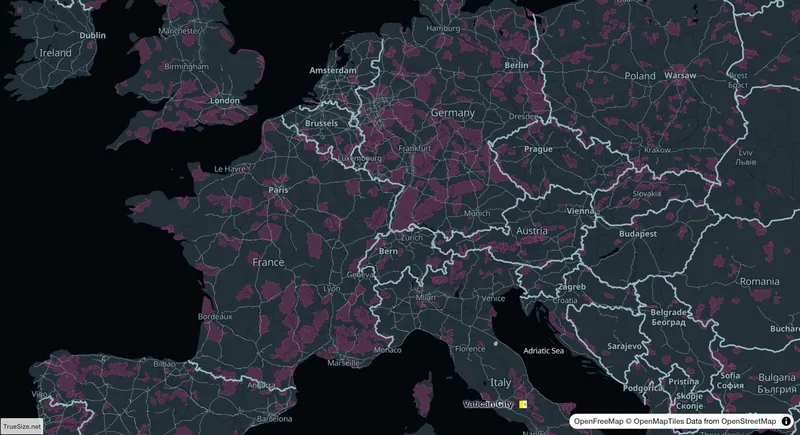
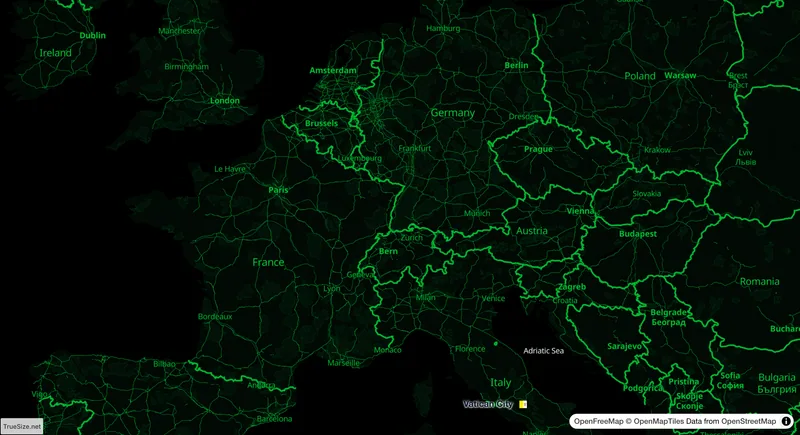
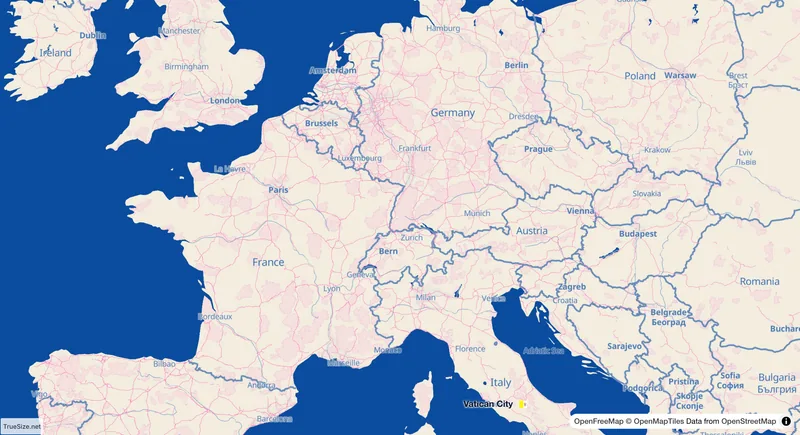
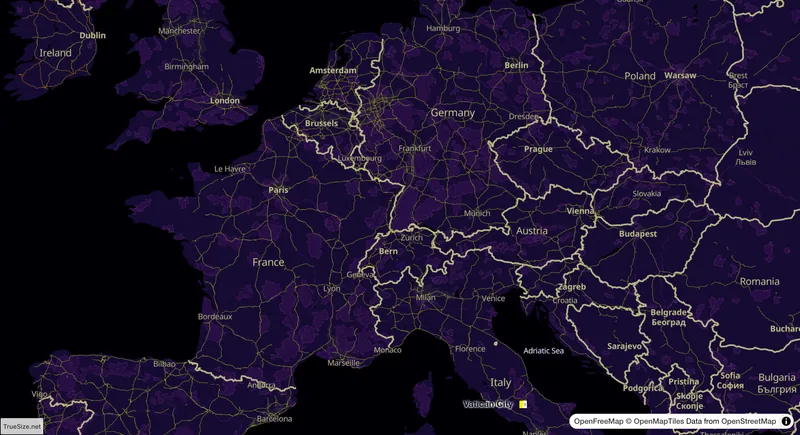
TrueSize ships with 34 ready-made map skins, from a classic paper look to dark night maps, vintage sepia, neon and thermal color schemes. A skin changes the colors of land, water, roads, borders and labels, and you can edit every color in the Skin Studio to make your own. Your countries keep their true size under every skin.
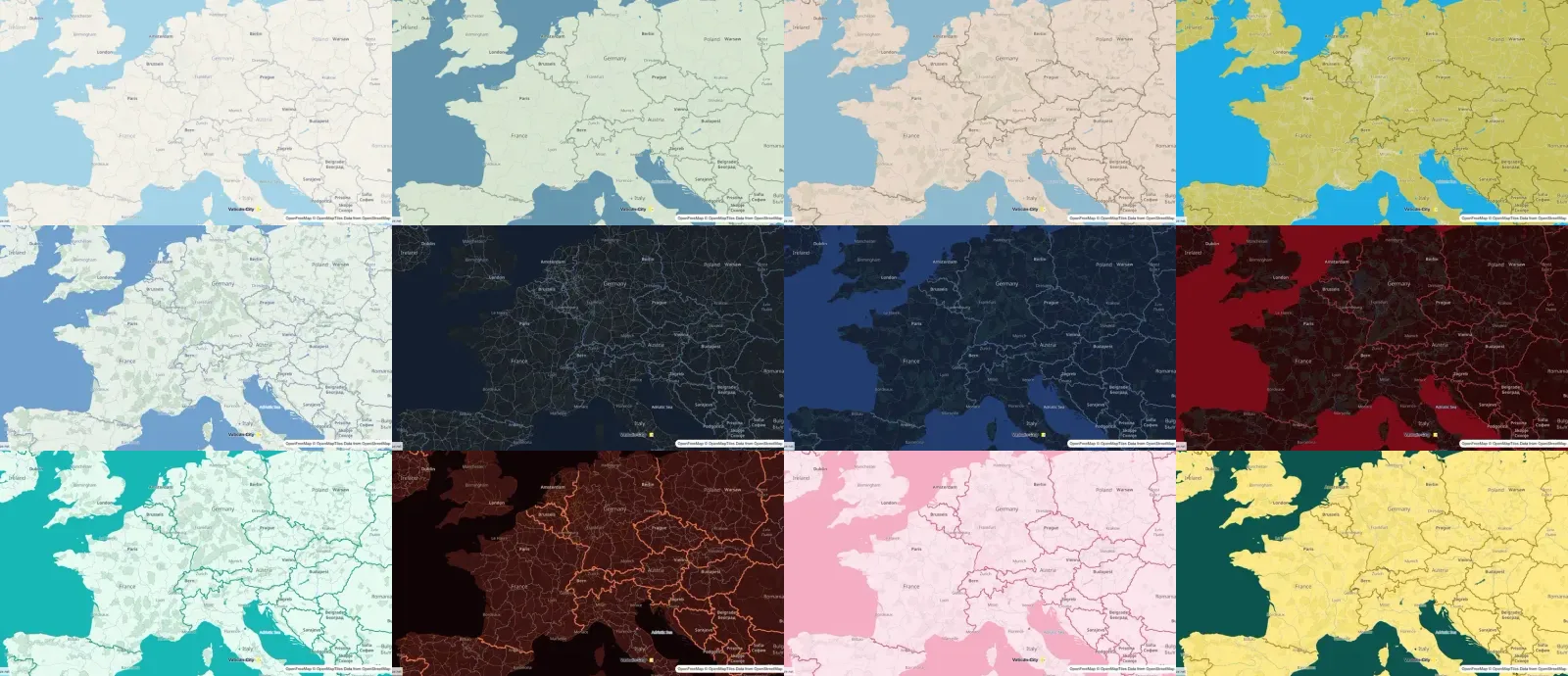
A collage of several TrueSize map skins including dark, vintage and neon map styles

A few of the 34 map skins in TrueSize.

How to change the skin ​

  1. Open the Style tab of the ribbon.
  2. In Map type, choose OpenStreetMap, a MapToolkit style, Satellite or Hybrid.
  3. In Skin, pick one of the 34 skins from the list.
  4. Click Customize to open the Skin Studio and edit the colors of your chosen skin.

MapToolkit offers seven separate styles: Summer, Light, Hiking, Cycling, Winter, Dark and Street. These are different base maps, not skins.

Customize a skin ​

The Skin Studio starts from any existing skin and lets you change about 50 color fields. They are grouped into Land, Water, Buildings, Roads, Borders, Transport and Labels, plus poster colors. You can also switch map layers on or off. Click Reset All Colors to go back to the skin you started from.

Once you edit a color, the skin is saved as Custom on your device. Some layers only show at certain zoom levels, so landcover, buildings and smaller roads can appear only after you zoom in or out far enough.
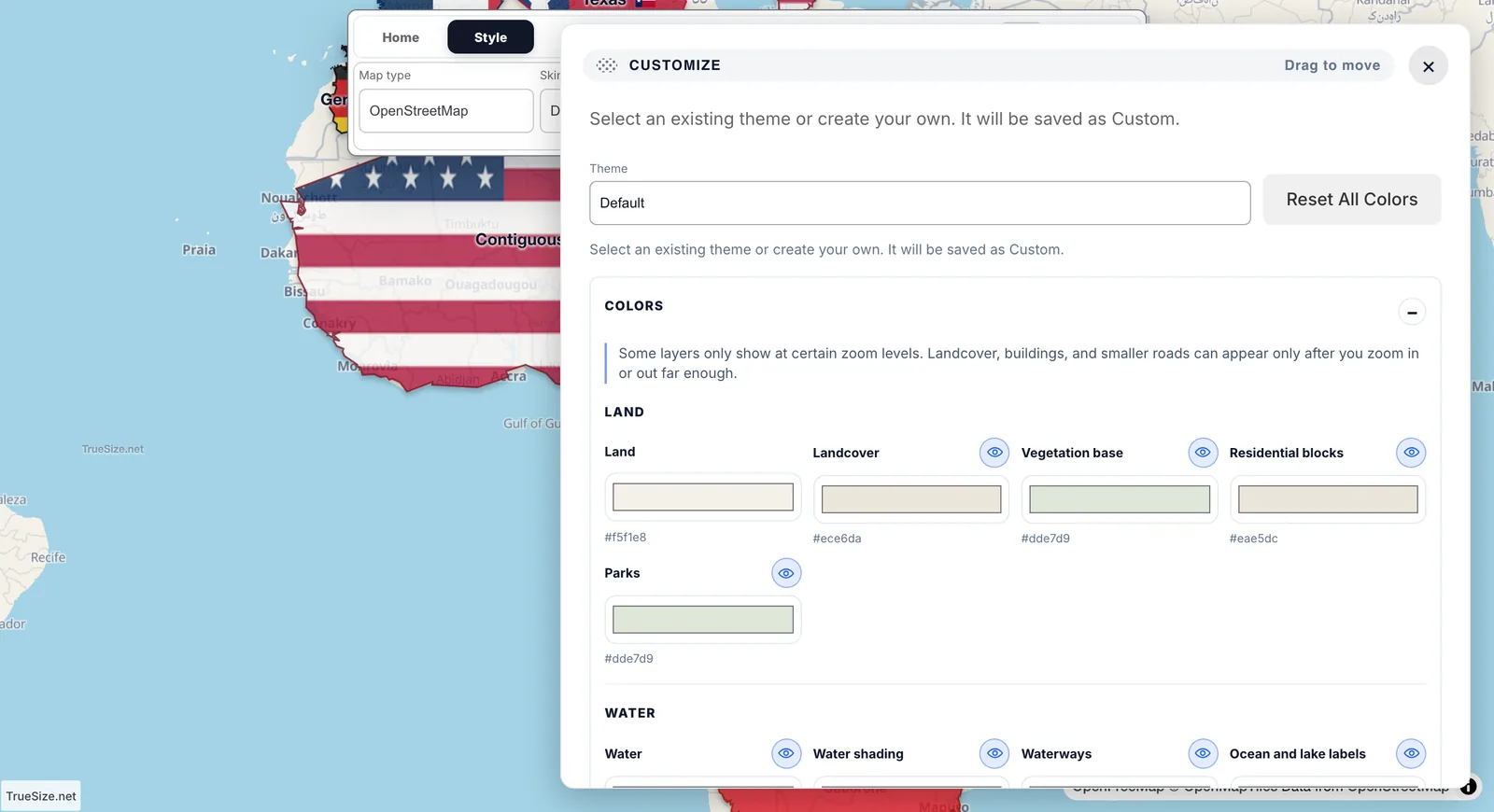
The Skin Studio panel for customizing map skin colors in TrueSize

The Skin Studio, where each color of a skin can be changed.

All 34 skins ​

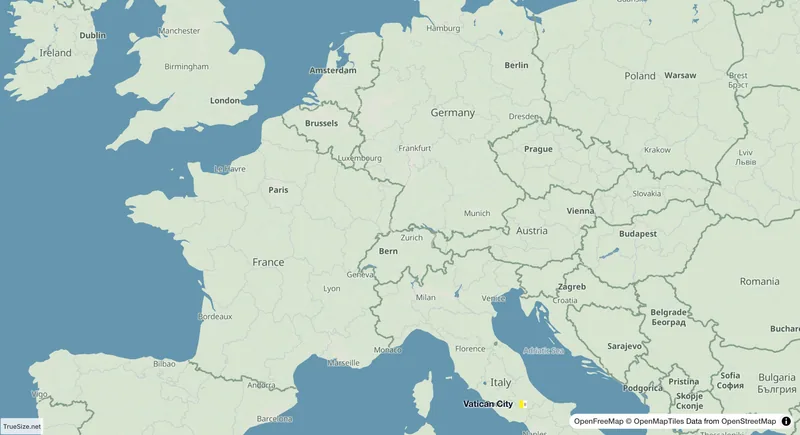
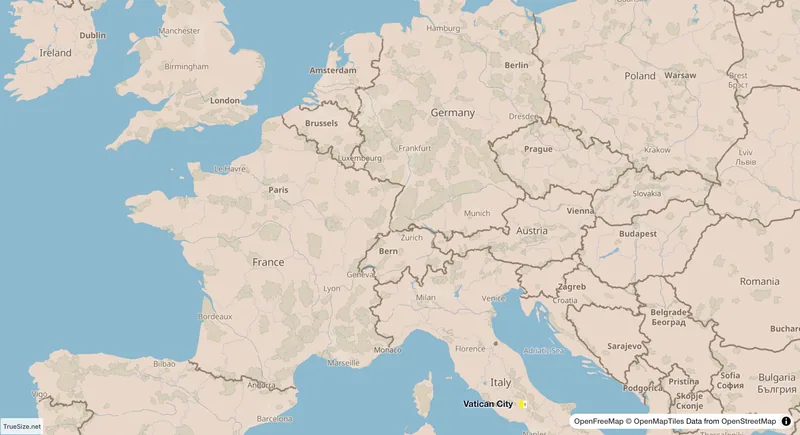
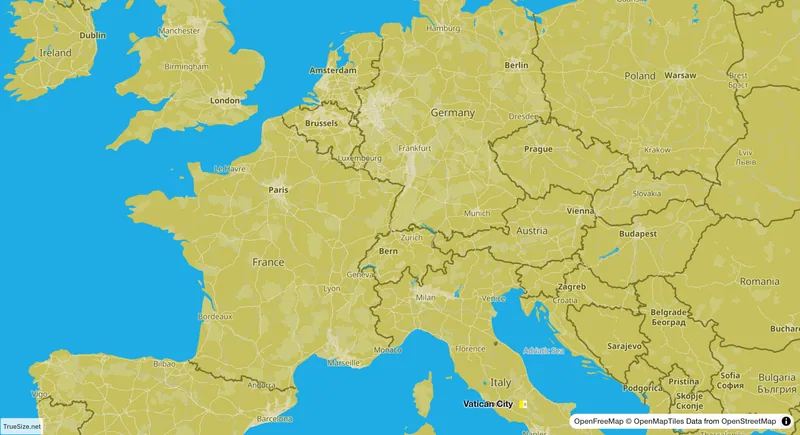
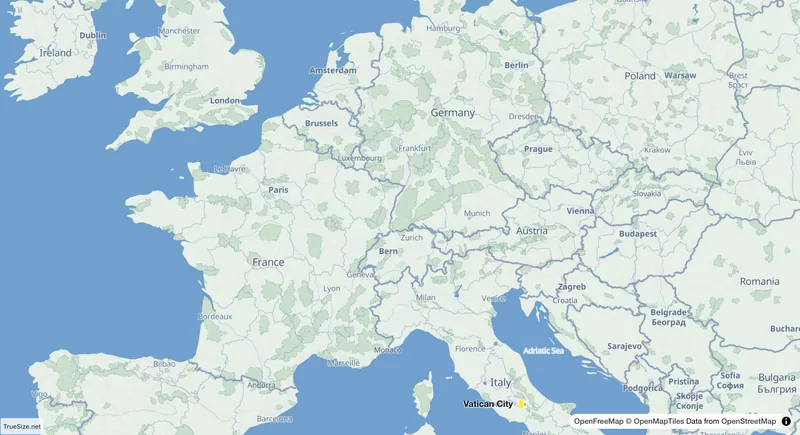
Every skin below is shown on the same map.
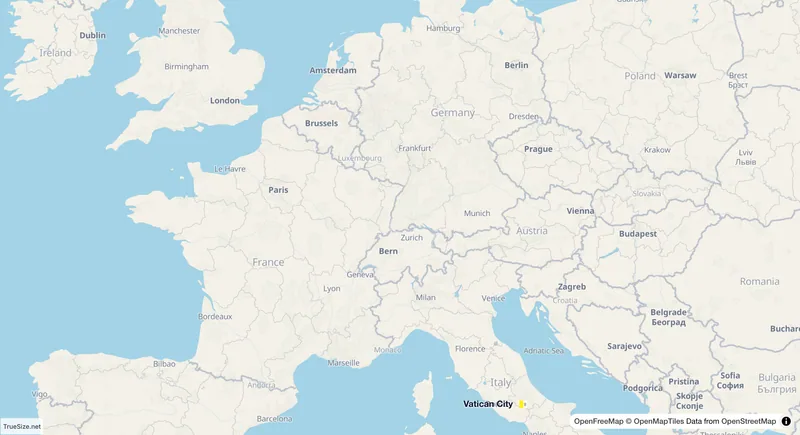
The Default map skin in TrueSize
Default
The Forest Canopy map skin in TrueSize
Forest Canopy
The Ember Clay map skin in TrueSize
Ember Clay
The Hazard Pop map skin in TrueSize
Hazard Pop
The Atlas Bloom map skin in TrueSize
Atlas Bloom
The Ink Wash map skin in TrueSize
Ink Wash
The Night Ink map skin in TrueSize
Night Ink
The Crimson Voltage map skin in TrueSize
Crimson Voltage
The Mint Wave map skin in TrueSize
Mint Wave
The Lava Flow map skin in TrueSize
Lava Flow
The Cherry Blossom map skin in TrueSize
Cherry Blossom
The Solar Desert map skin in TrueSize
Solar Desert
The Toxic Swamp map skin in TrueSize
Toxic Swamp
The Sepia Archive map skin in TrueSize
Sepia Archive
The Ultraviolet map skin in TrueSize
Ultraviolet
The Macaron Pastels map skin in TrueSize
Macaron Pastels
The Mono Print map skin in TrueSize
Mono Print
The Wine & Honey map skin in TrueSize
Wine & Honey
The Nocturne Gold map skin in TrueSize
Nocturne Gold
The Electric Afterglow map skin in TrueSize
Electric Afterglow
The Saffron Carbon map skin in TrueSize
Saffron Carbon
The Architect Draft map skin in TrueSize
Architect Draft
The Density Ink map skin in TrueSize
Density Ink
The Oxide Teal map skin in TrueSize
Oxide Teal
The Jade Night map skin in TrueSize
Jade Night
The Gallery Black map skin in TrueSize
Gallery Black
The Fiord Slate map skin in TrueSize
Fiord Slate
The Eclipse Inversion map skin in TrueSize
Eclipse Inversion
The Nautical Chart map skin in TrueSize
Nautical Chart
The False Color Infrared map skin in TrueSize
False Color Infrared
The Phosphor Terminal map skin in TrueSize
Phosphor Terminal
The Riso Duotone map skin in TrueSize
Riso Duotone
The Thermal Bloom map skin in TrueSize
Thermal Bloom
The Blackout map skin in TrueSize
Blackout

Which skin for what ​

  • Dark skins such as Night Ink, Jade Night, Gallery Black and Blackout make bright country colors stand out.
  • Vintage skins such as Sepia Archive, Nautical Chart and Architect Draft suit historical maps and the timeline.
  • High-contrast skins such as Mono Print and Riso Duotone work well for posters and screenshots.

Skins are not kept in share links, so a friend opening your link sees the default look. To share a styled map, make a poster.

Where it works ​

Skins, the Skin Studio and the map types are available on the web. The mobile app has its own Style tab; the Skin Studio is described here for the web version.


Next: Flag identifier

Please rotate your device

The map needs portrait orientation on small screens — landscape leaves too little height to work with.